
Rich emails
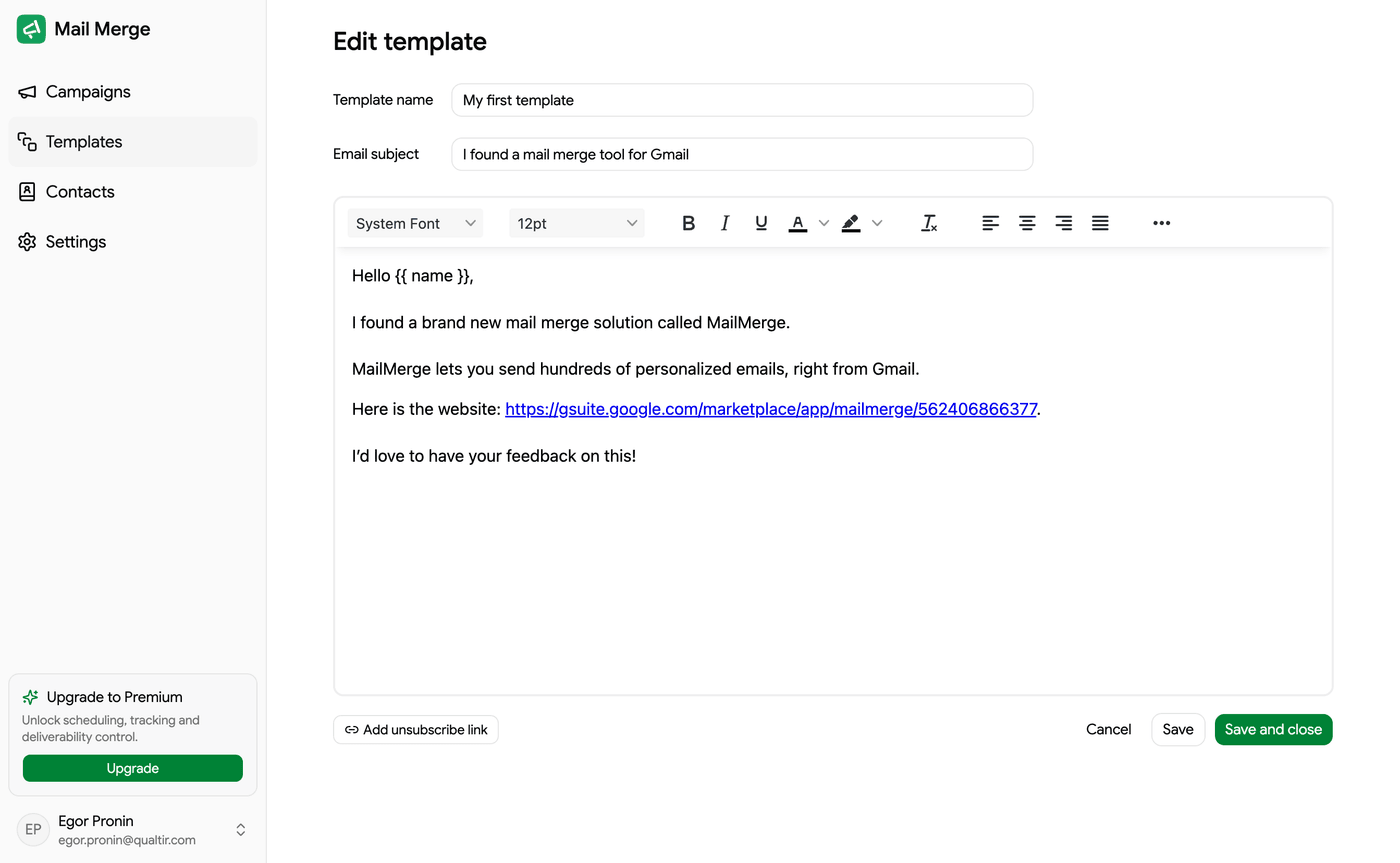
Mail Merge emails are written in a rich-text editor, the same one in the campaign builder and in the template editor. Everything you format is sent as HTML, so your recipients see it as you do.
Formatting
Section titled “Formatting”The toolbar offers fonts (Sans Serif, Arial, Georgia, Helvetica, Tahoma, Times New Roman, Verdana, Courier New), sizes, bold, italic, underline, strikethrough, text color, highlight color, alignment, numbered and bulleted lists, indentation and quotes. Clear formatting resets the selection to plain text.
In the campaign builder the less common controls sit behind the ⋯ button at the right end of the toolbar.
Hyperlinks
Section titled “Hyperlinks”- Select the text you want to turn into a link.
- Click Insert link (the chain icon).
- Paste the URL and press Enter or click Apply.
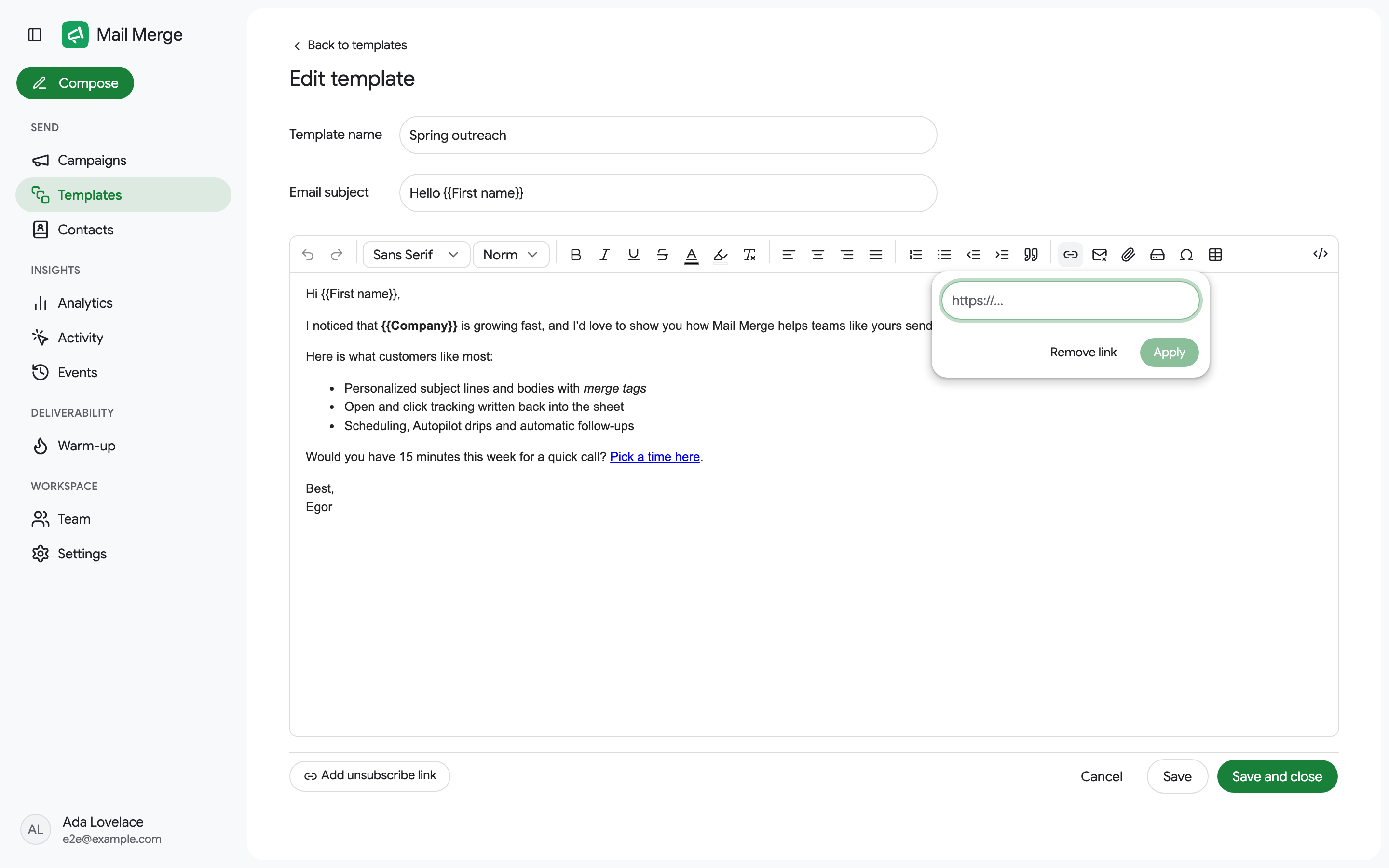
To change a link, click inside it and open the popover again; Remove link turns it back into plain text. A merge tag can be part of a URL, for example https://example.com/book?ref={{First name}}, and is replaced per recipient.
When tracking is on, every link is tracked: a click marks the row Clicked and shows up in Activity and Analytics.
Tables
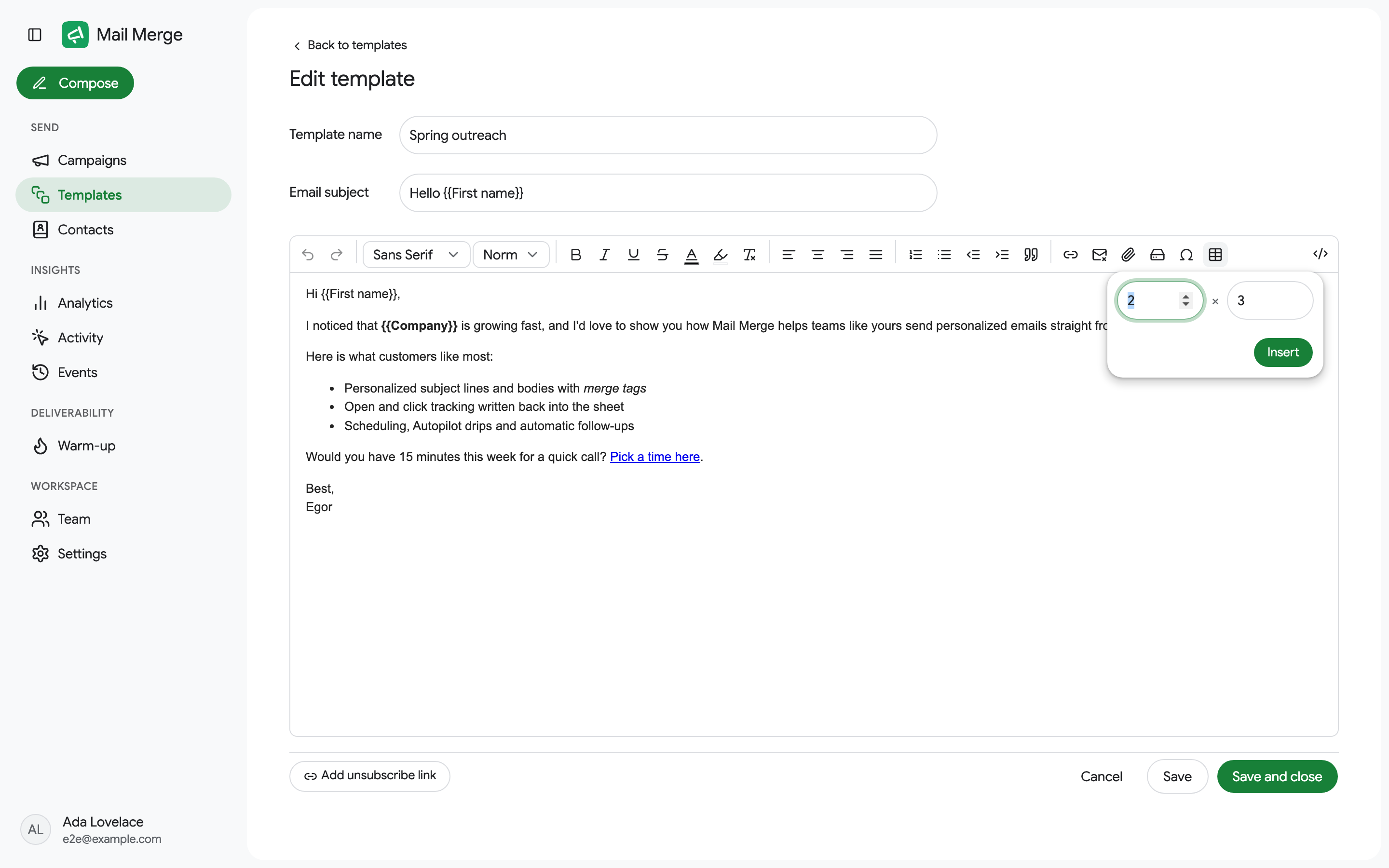
Section titled “Tables”Insert table asks for the number of rows (up to 20) and columns (up to 10) and inserts an empty table you fill in place.
Special characters
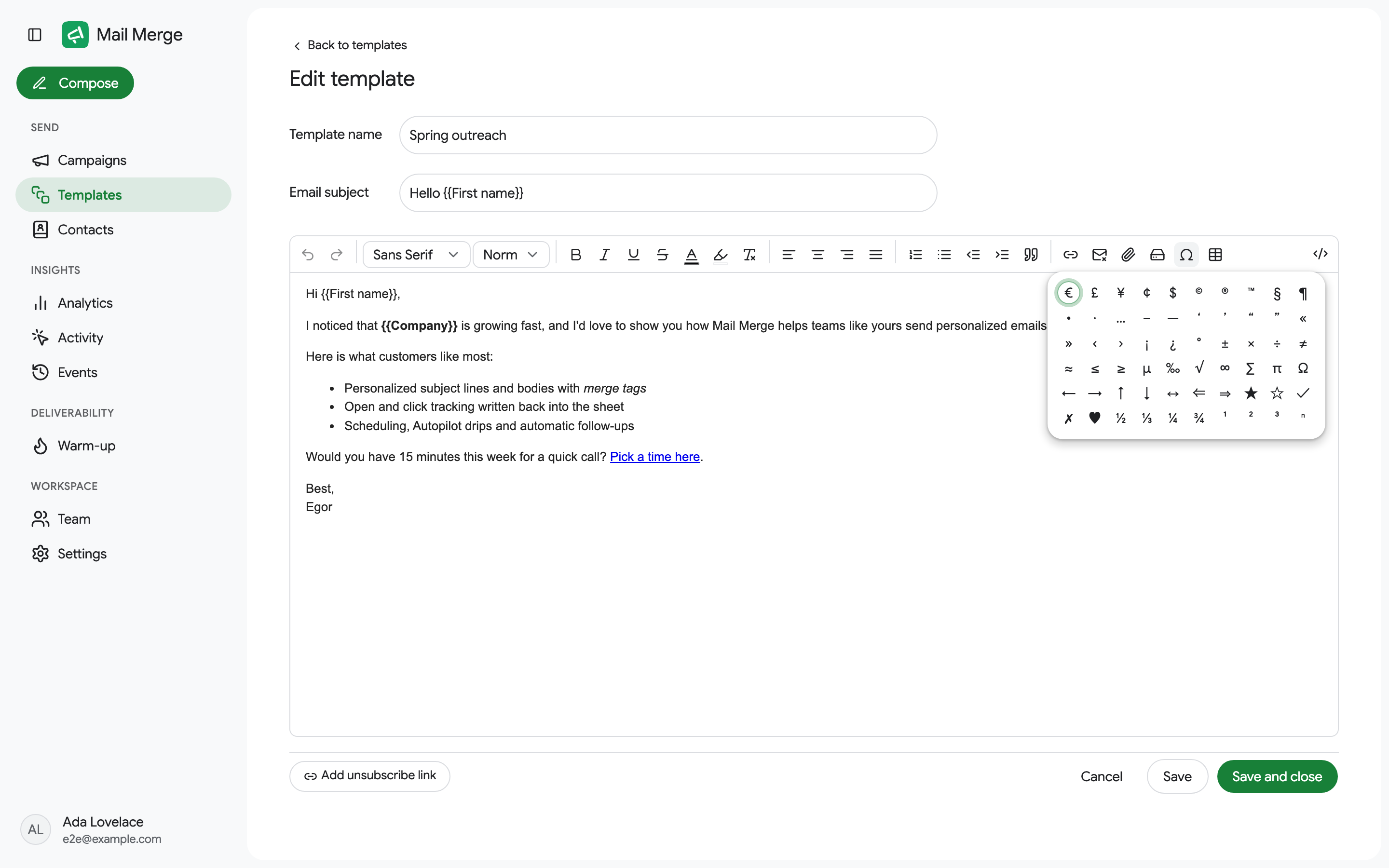
Section titled “Special characters”Special character opens a grid of symbols: currency signs, ©, ®, ™, typographic quotes, arrows, check marks, fractions and more. Emoji can be typed directly with your system’s emoji keyboard.
HTML source
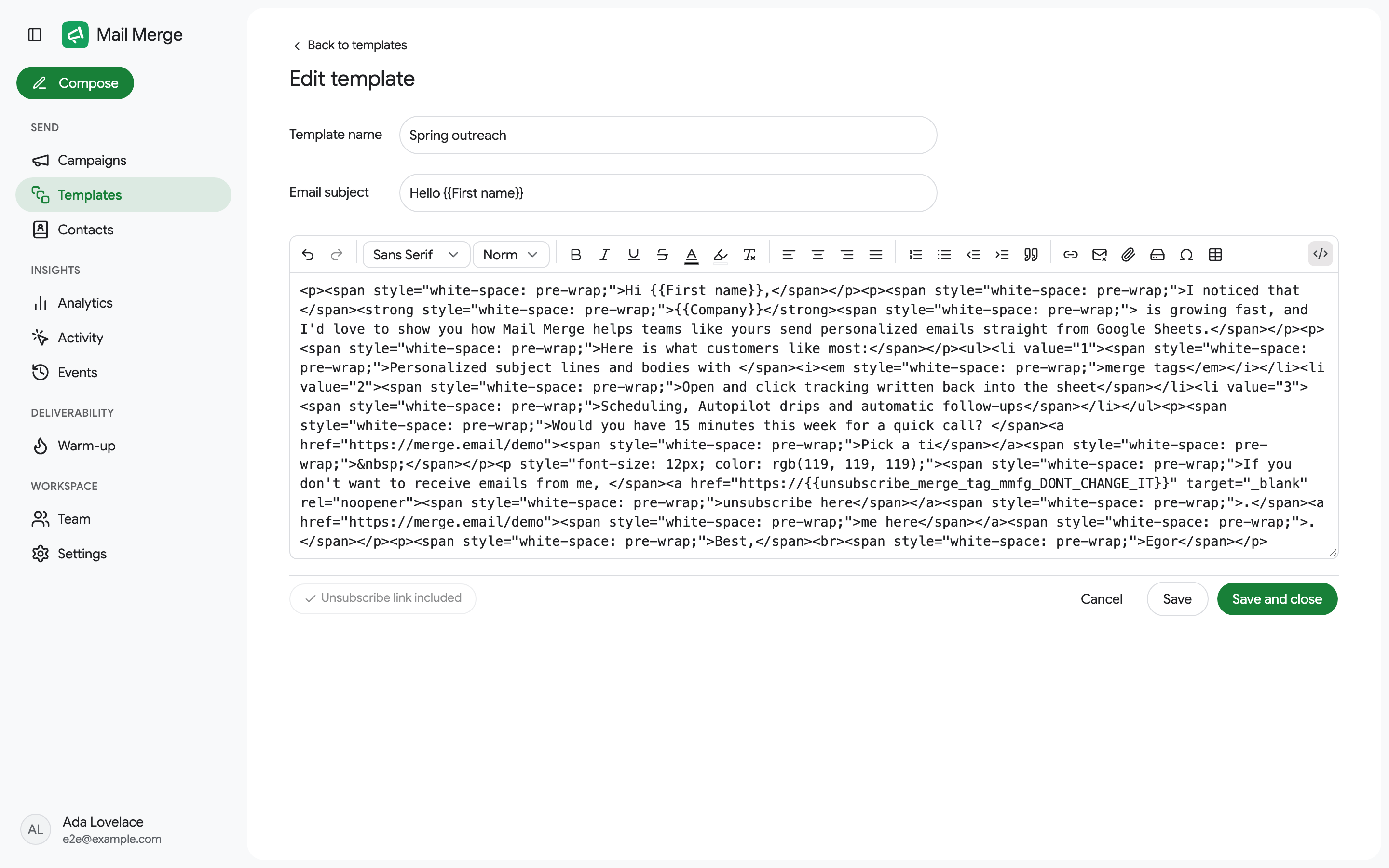
Section titled “HTML source”HTML source (the </> button) shows the raw HTML of the email. Use it to paste a designed email built in another tool, or to fine-tune something the visual editor cannot express. Click it again to return to the visual view.
See also Images and Attachments.