
Templates
The Templates screen holds your saved email templates. Templates are shared with the Mail Merge add-on in Google Sheets, so anything you save here is available when you send from a spreadsheet, and vice-versa.
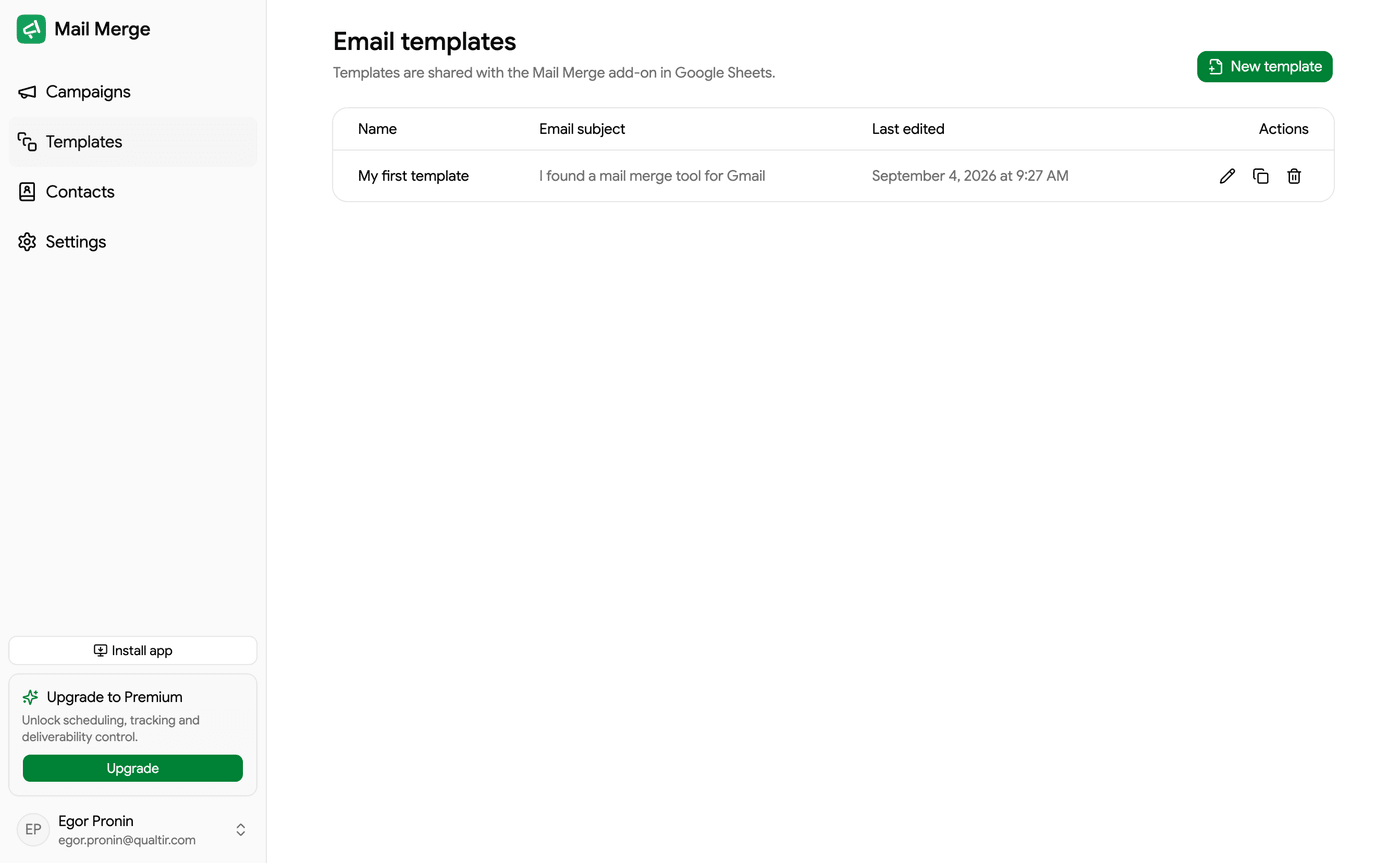
Each row shows the template name, its email subject, and when it was last edited. The action buttons let you edit (pencil), duplicate, or delete a template.
Editing a template
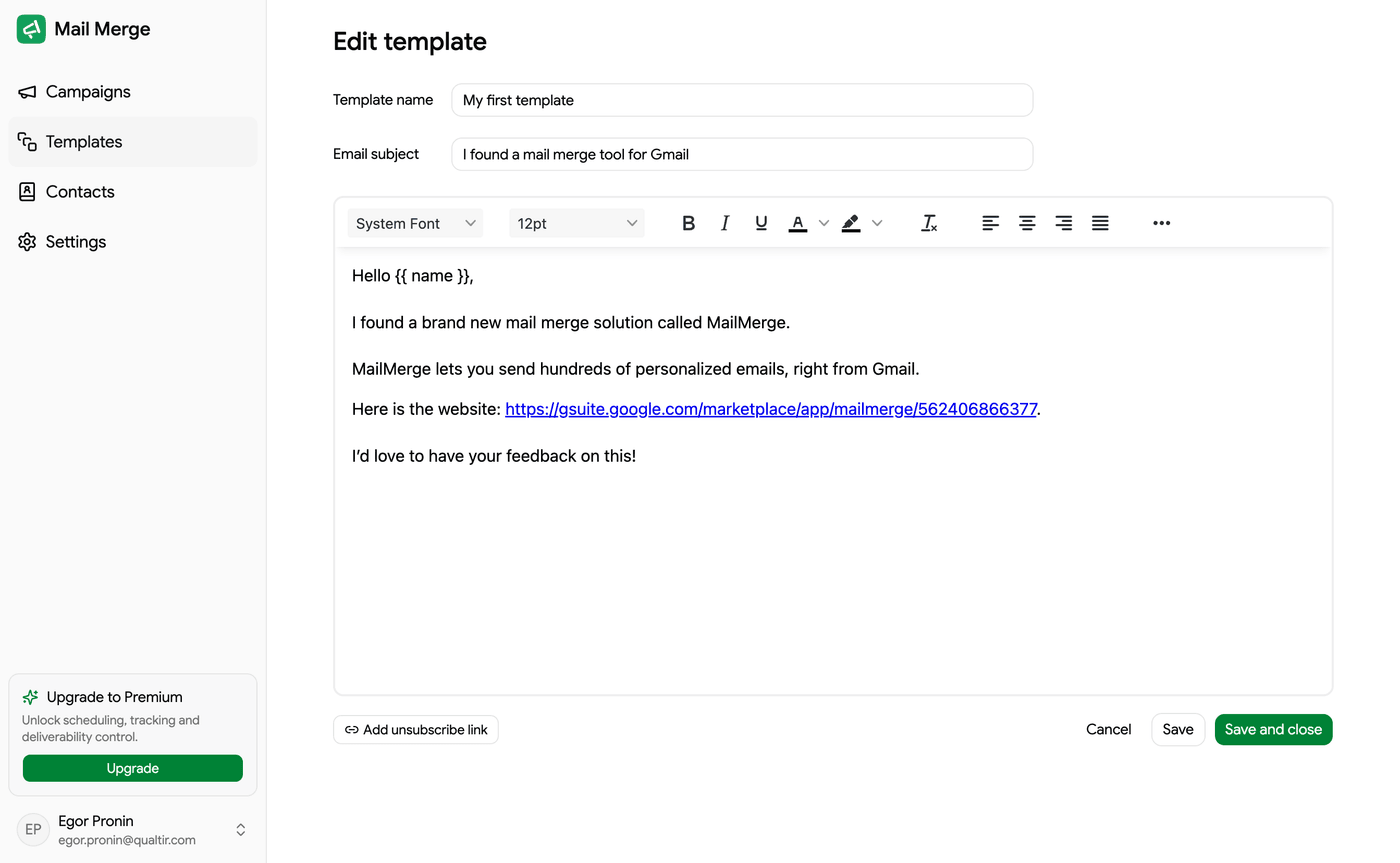
Section titled “Editing a template”Click the pencil to open the editor. You can change the template name and email subject, and compose the body in a rich-text editor with fonts, sizes, bold/italic/underline, colors, alignment, and more.
Merge tags
Section titled “Merge tags”Personalize your emails with merge tags — the names of your spreadsheet columns wrapped in double curly braces, e.g. {{ name }}. When a campaign sends, each tag is replaced with the value from that recipient’s row. See the Mail Merge Tutorial for how merge tags work end-to-end.
Unsubscribe link
Section titled “Unsubscribe link”Use Add unsubscribe link to insert a one-click unsubscribe into the body. See Unsubscribe link for details on how opt-outs are handled.
When you are done, Save keeps the editor open, and Save and close returns you to the list.