
Canceling an email campaign
Everything happens on the Campaigns screen, which you reach from Google Sheets via Extensions → Mail Merge for Gmail → 📨 Campaigns or at merge.email/app.
Cancel a scheduled campaign
Section titled “Cancel a scheduled campaign”A scheduled campaign has not sent anything yet, so cancelling it is clean:
- Open the Scheduled tab.
- Hover the campaign and click Delete (the trash icon), then confirm.
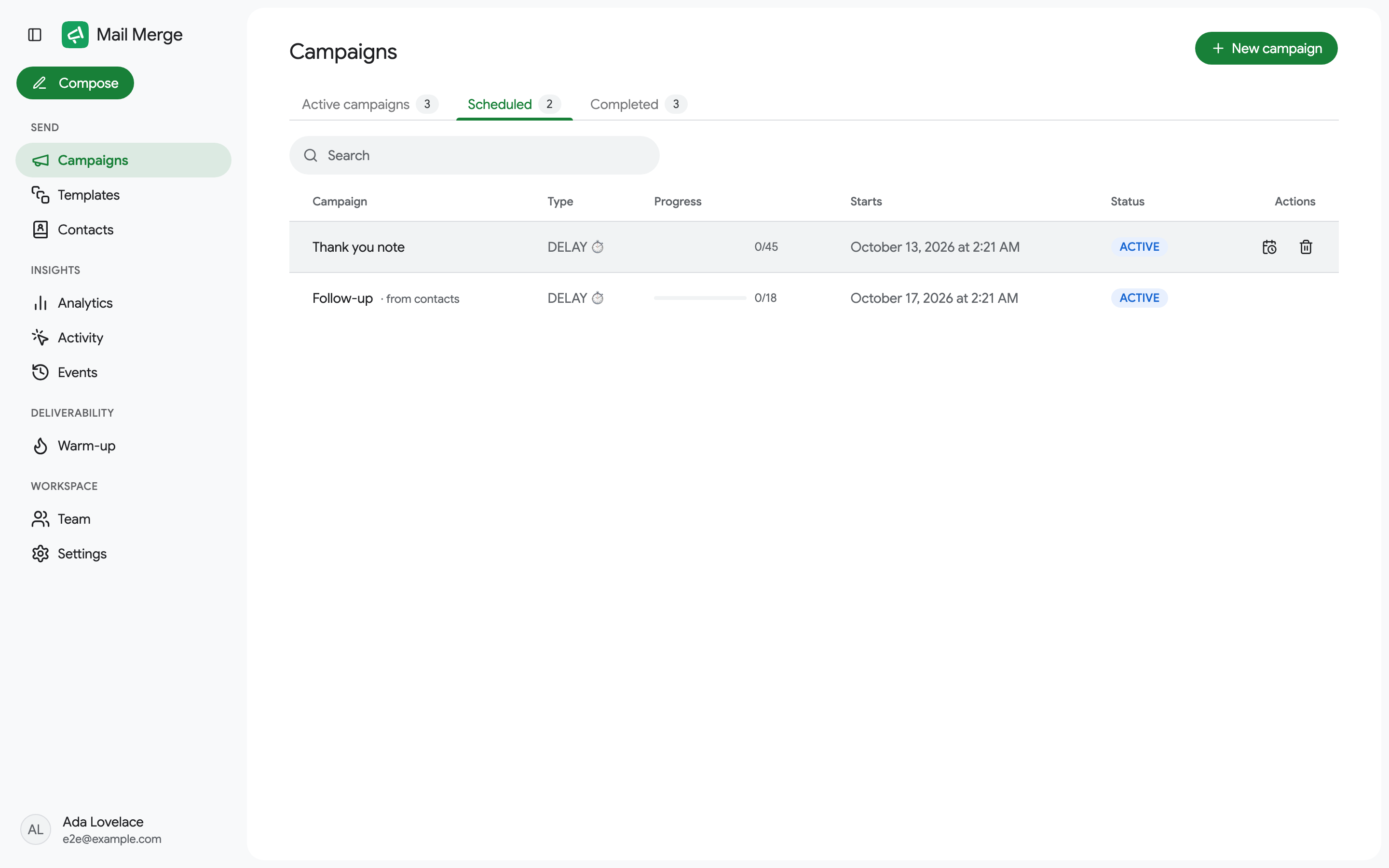
Nothing is sent, and the campaign’s data is removed. To move it instead of cancelling it, use Edit send date. See Campaign scheduling.
Pause or stop a campaign that is sending
Section titled “Pause or stop a campaign that is sending”Open the Active campaigns tab and hover the campaign:
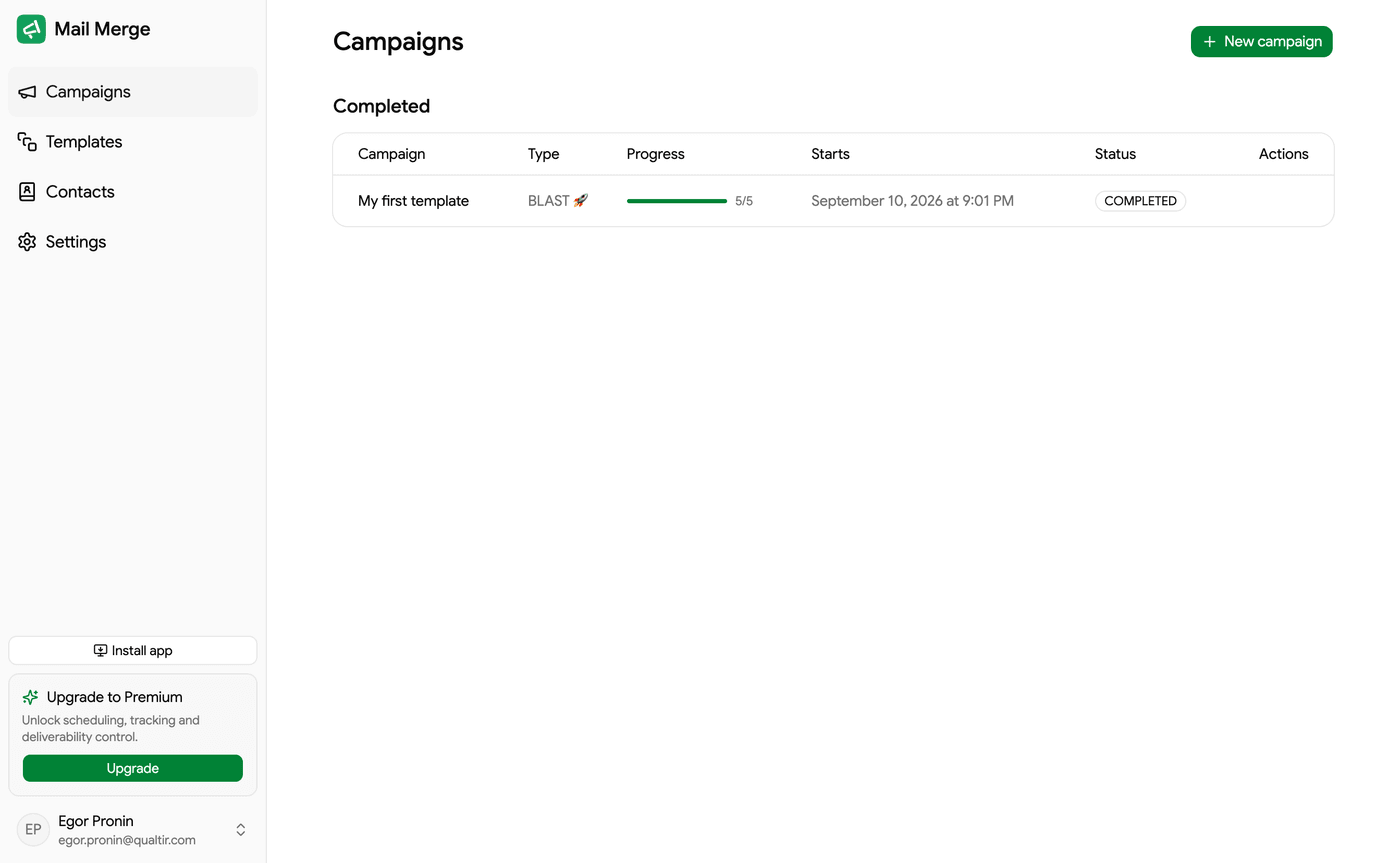
- Pause (the pause icon) holds the queue. Emails already sent stay sent; the rest wait. Pending rows in your sheet show Paused. Resume continues where it stopped.
- Stop, in the ⋮ menu, ends the campaign for good. The unsent emails are never sent, the unused daily quota is given back, and pending rows show Cancelled.
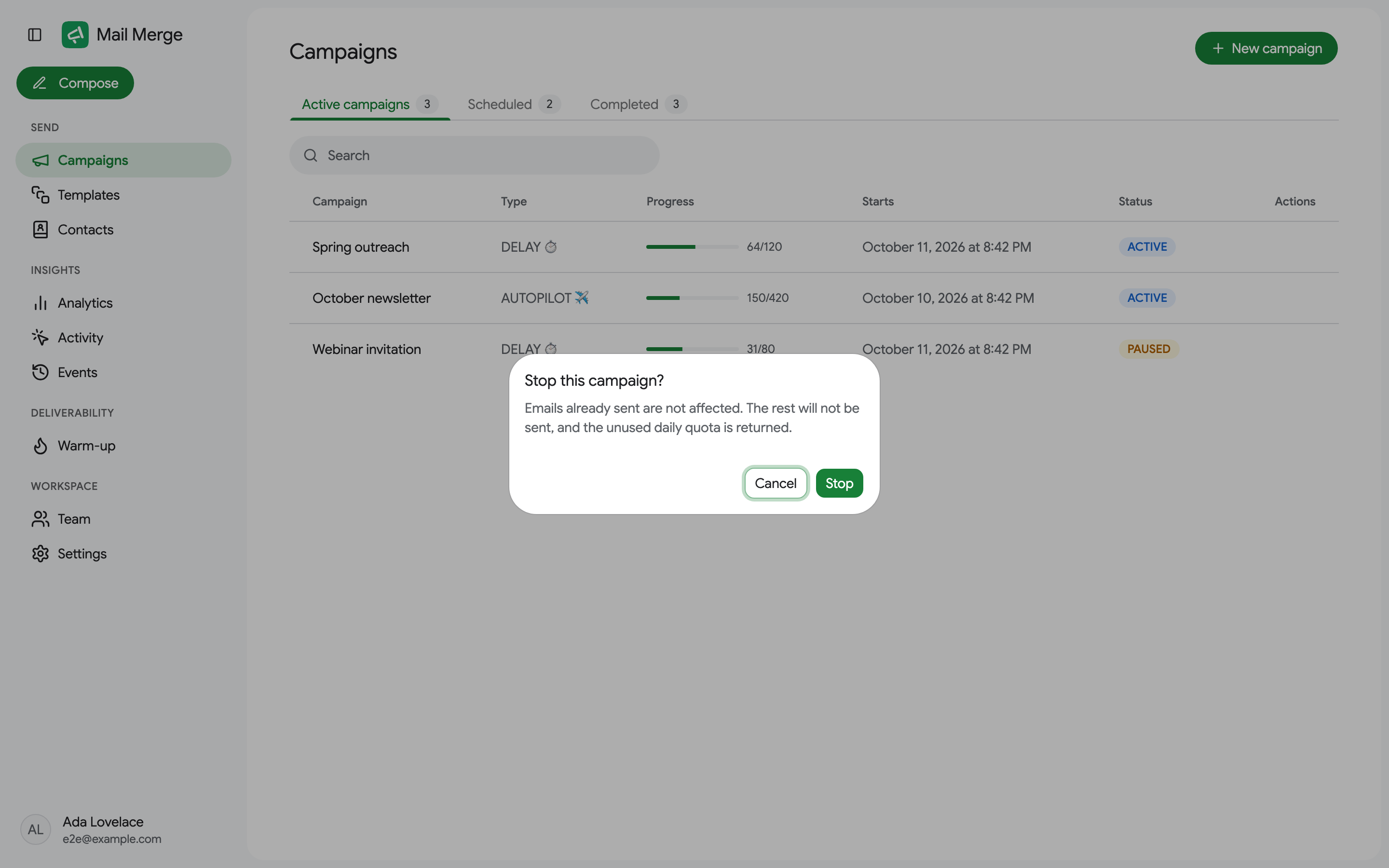
The first emails of a campaign leave within seconds of sending, so stopping limits the damage rather than undoing it. Before clicking Send, use Show preview and Send me a test to catch mistakes.
Delete a campaign that failed
Section titled “Delete a campaign that failed”A campaign that could not be queued shows Failed to start. Its ⋮ menu offers Delete; launch it again afterwards.
What the statuses mean afterwards
Section titled “What the statuses mean afterwards”| In the sheet | Meaning |
|---|---|
| Sent, Read, Clicked | Delivered before the campaign was paused or stopped. |
| Paused | Waiting; resumes when you click Resume. |
| Cancelled | Never sent, because the campaign was stopped. |
| Scheduled | The campaign was deleted before starting; the rows keep their last status. |
Need to send to the cancelled rows later? Launch a new campaign from the same sheet: Mail Merge adds a fresh status column. Filter the sheet to the cancelled rows and keep Only visible rows on, so the rows that already received the email are left out (see Only visible rows).