
Troubleshooting
Most problems reported to support fall into one of the situations below. Find your symptom, apply the fix, and if it does not help, write to us with the details listed at the end of this page.
“We need you to re-authorize Mail Merge”, “Authorization is required”, a sign-in loop
Section titled ““We need you to re-authorize Mail Merge”, “Authorization is required”, a sign-in loop”Cause 1: several Google accounts in the same browser. Google Sheets runs under one account, the add-on window under another, and Google refuses the mismatch. Symptoms: the authorization screen comes back after every approval, “Sorry, we could not sign you in”, or an error mentioning the spreadsheet is not accessible.
Fix: use one Google account per browser profile. Sign out of the other accounts, or open an incognito window, sign in with the account you use for Mail Merge, and open the spreadsheet there. In the web app, the account shown at the bottom of the sidebar must be the same as the active account in Google Sheets.
Cause 2: a permission was skipped at installation. Google lets you untick individual permissions, and an add-on with a partial grant cannot always ask again.
Fix: open myaccount.google.com/connections, find Mail Merge, choose Delete all connections you have with Mail Merge, refresh the spreadsheet, open Mail Merge again and approve every permission. If that fails, uninstall from the Marketplace and install again. See Installation.
Cause 3: a Google Workspace policy. Some organizations block third-party add-ons or restrict OAuth apps. The admin can allow Mail Merge in the Google Admin console under Security → API controls.
“I click Send and nothing happens”
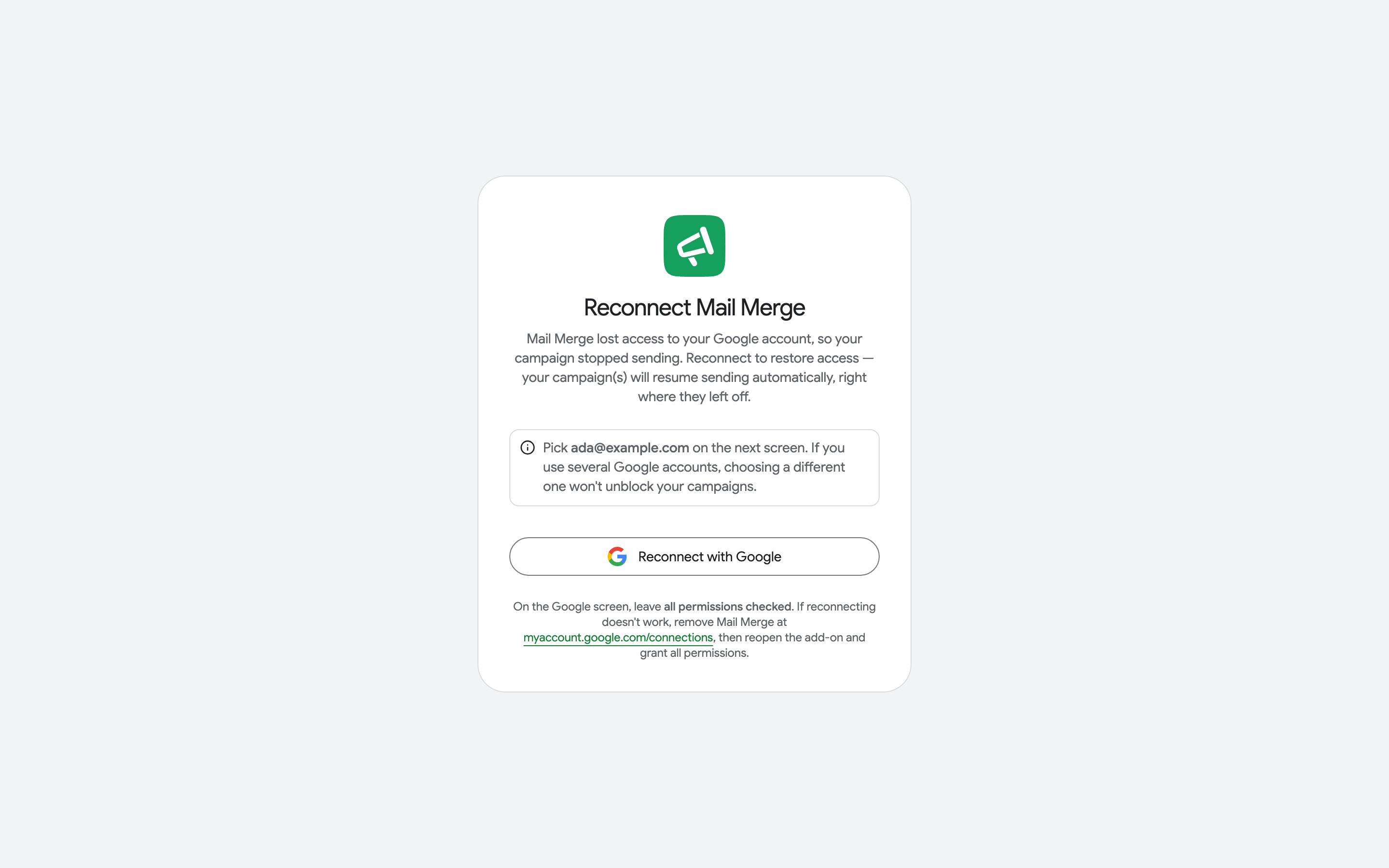
Section titled ““I click Send and nothing happens””The campaign was not accepted because Mail Merge has no permission to send through your Gmail account or to read your Drive files. Newer versions show Your campaign was not sent: reconnect your Google account with a Reconnect button; older ones showed only a spinner.
Fix: open merge.email/app/reconnect, click Reconnect with Google, pick the same account you send from, and leave all permissions checked. Then send the campaign again. The Reconnect page is also what you reach from the email we send when access is lost during a campaign.
“Grant Google Drive access”, Drive picker error 403
Section titled ““Grant Google Drive access”, Drive picker error 403”Attaching files from Google Drive, or a per-row column of Drive links, needs the Drive read permission. When it is missing, Mail Merge shows Grant Google Drive access before sending, or the Drive picker fails.
Fix: click Grant access and approve, or reconnect as above with every permission checked. See Attachments.
“Found 0 valid emails”, “Send to 0 recipients”
Section titled ““Found 0 valid emails”, “Send to 0 recipients””Mail Merge could not find an email column. Check:
- The first row of the sheet holds column names, and the addresses are below it.
- The recipient column contains plain addresses:
name@example.com, several separated by commas. Formulas and hyperlinked cells are fine; images and chips are not. - The right tab is active. The builder reads the sheet you had open when you clicked New campaign; in the web app, pick the tab in the recipients dialog.
- The data is not a Google Sheets “Table” (the Format → Convert to table feature). Convert it back to a plain range: right-click the table name and choose Convert to range, or copy the cells to a new tab.
- The sheet is not empty of addresses: Missing recipient rows are counted separately and listed in the preview.
Filtered or hidden rows are still rows: Mail Merge sends to them. Move the rows you do not want to another tab before sending.
“exceeds grid limits”, “insertDimension”, statuses not written to the sheet
Section titled ““exceeds grid limits”, “insertDimension”, statuses not written to the sheet”The campaign sent, but Google Sheets refused to write the status column because the sheet has fewer columns (or rows) than Mail Merge needs: the column was deleted, or the sheet was trimmed after the campaign started.
Fix: right-click a column header and Insert 1 column right until the status column fits (or add rows), then open Mail Merge again from the spreadsheet. The statuses that could not be written are kept and painted as soon as the sheet can hold them.
The add-on window is blank or shows an error at startup
Section titled “The add-on window is blank or shows an error at startup”A blank window, or an error such as Cannot convert undefined or null to object, is almost always the browser session:
- Refresh the spreadsheet (F5) and open Mail Merge again.
- Try an incognito window with only the Mail Merge account signed in.
- Clear the browser cache for docs.google.com, or try another browser.
If it persists, send us the exact text of the error and the time it happened.
I cannot find the add-on
Section titled “I cannot find the add-on”- Mail Merge is a Google Workspace add-on, not a Chrome extension. It lives in Google Sheets under Extensions → Mail Merge for Gmail, in the Gmail side panel and in Google Docs. There is nothing to install in Chrome.
- After installing, refresh the spreadsheet; add-ons load a few seconds after the page.
- Each Google account installs the add-on once: install it from the Marketplace while signed in with the account that will send. See Installation.
Emails sent, but the statuses in the sheet do not change
Section titled “Emails sent, but the statuses in the sheet do not change”Open Mail Merge from the spreadsheet, or use 🔄 Refresh tracking: statuses are written when the add-on opens, and tracking statuses need tracking to have been on. If the sheet is narrower than the status column, see the grid limits section above. If Mail Merge lost access to your account mid-campaign, reconnect: the missing statuses are repainted on the next open.
Writing to support
Section titled “Writing to support”Send to contact@merge.email, from the Google account you use with Mail Merge:
- the account email (and the one you paid with, if different),
- the campaign name or the template name, and the time you sent,
- the exact error text, or a screenshot of the window,
- what you already tried from this page.
Error reports titled Mail Merge error report that the add-on offers to send contain this information already.