
Multiple recipients
Each row of your sheet is one email, but that email can go to several people: several addresses in the recipient cell, or extra people in CC and BCC.
Several recipients in one cell
Section titled “Several recipients in one cell”Type the addresses in the recipient column separated by commas: nathan@company.com, mathias@company.com. All of them receive the same email, together, in the To field.
CC and BCC columns
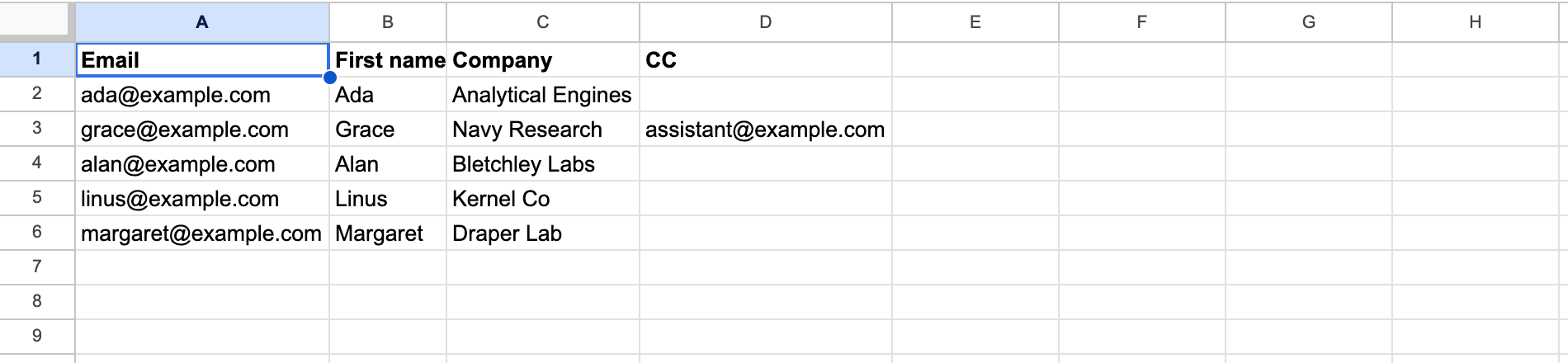
Section titled “CC and BCC columns”Add one column for CC (carbon copy) and one for BCC (blind carbon copy). Like the recipient column, a cell can hold one address or several separated by commas, and it can be empty for rows that need no copy.
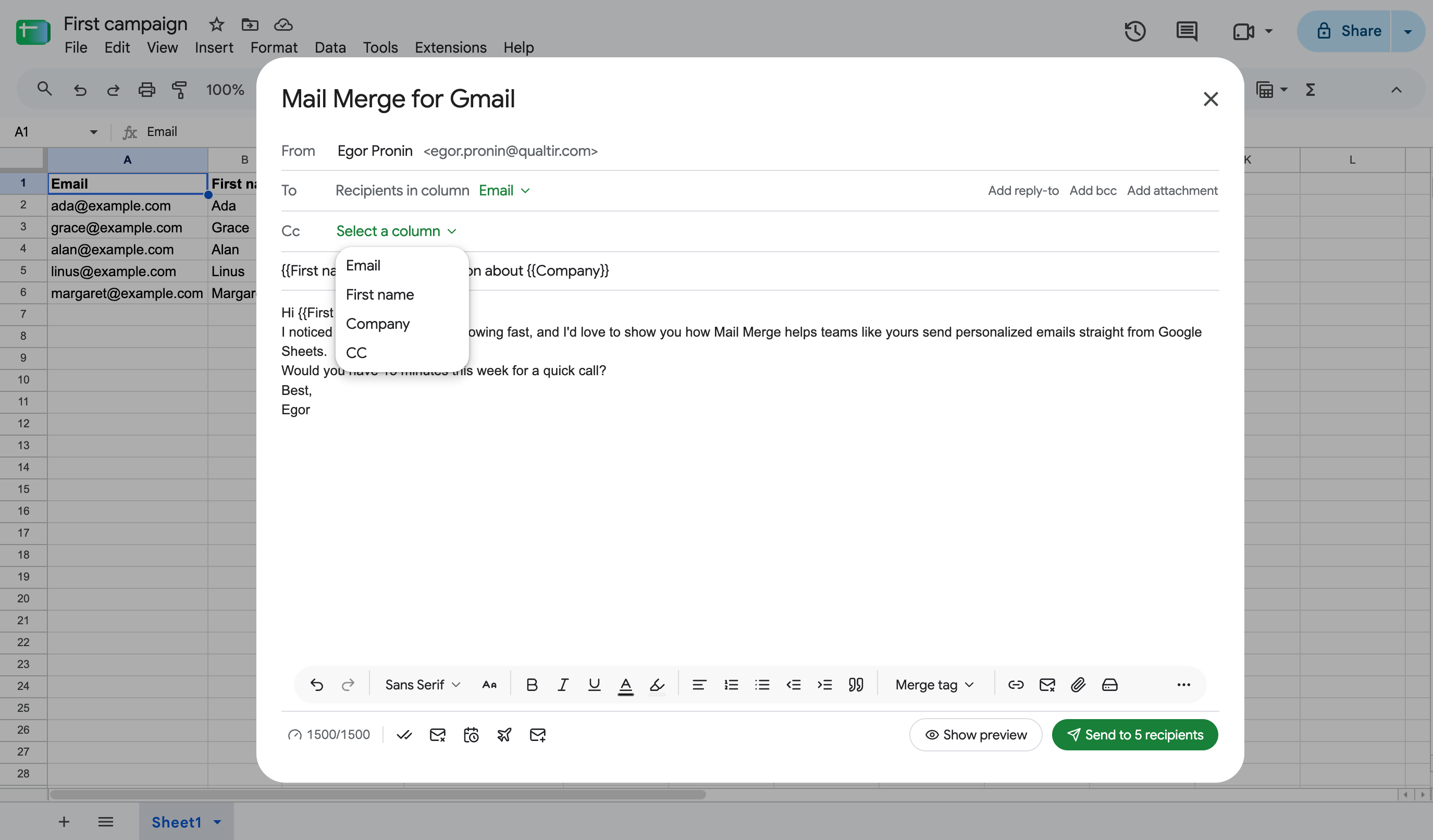
Then tell Mail Merge which columns they are. In the campaign builder, click Add cc or Add bcc on the right of the To row of the compose card and pick the column; a Cc or Bcc row appears under To with the column you chose.
In the web app, the recipients dialog offers the same CC column and BCC column mappings for a Google Sheet or an uploaded file. The preview shows the CC and BCC addresses of every email, so you can check the mapping before sending.
Reply-to
Section titled “Reply-to”Add reply-to sets the address replies go to, when it differs from the account you send from. It applies to every email of the campaign. The From address itself is always the signed-in Google account; see Sender name, reply-to and aliases.
Daily limit and multiple recipients
Section titled “Daily limit and multiple recipients”Every recipient counts toward your daily sending limit, whether in To, CC or BCC:
- One email with one person in CC and one in BCC uses 3 of your daily emails.
- One email to three people with two in CC uses 5.