
Sender name, reply-to and aliases
The From address
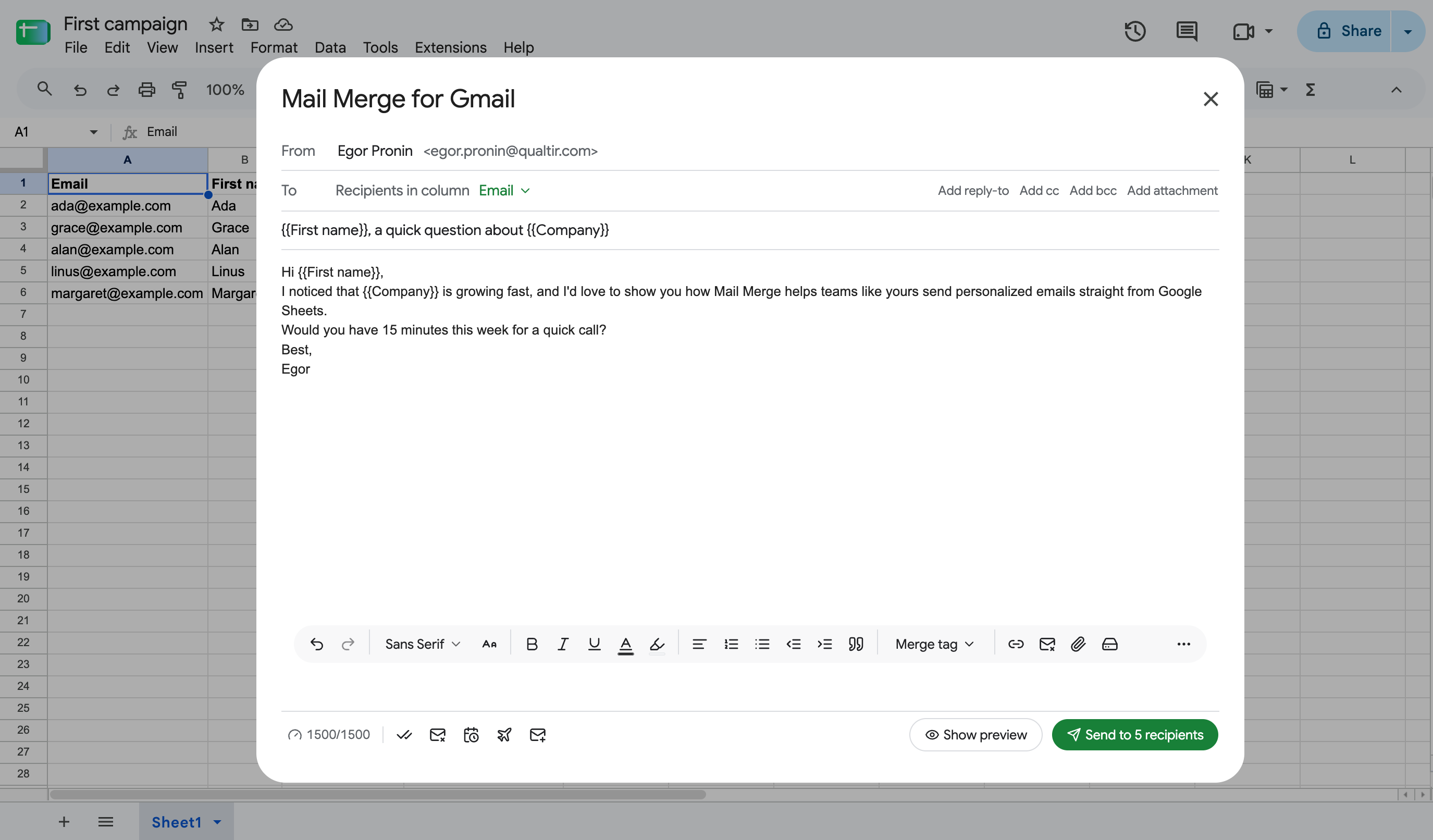
Section titled “The From address”Every campaign is sent from the Google account you are signed in with: the account that opened Mail Merge in Google Sheets, or the one shown at the bottom of the web app’s sidebar. The From row of the campaign builder shows it next to the sender name.
To send from another address, sign in with that account. It needs its own Mail Merge installation and, for paid features, its own subscription or a team seat. Switching accounts in the web app is instant through Add another account in the account menu.
Aliases and “Send mail as” addresses
Section titled “Aliases and “Send mail as” addresses”Addresses configured in Gmail under Settings → Accounts → Send mail as, secondary addresses, group addresses and addresses from another provider cannot be used as the From address. Mail Merge sends through the Gmail API of the signed-in account, and Gmail stamps that account’s primary address on every message.
If replies should reach another mailbox, use the reply-to address below. If the emails must come from another address, send from that Google account.
Sender name
Section titled “Sender name”The name recipients see next to the address comes from your Google profile. Change it per campaign in the From field of the builder: it is a free text field, and the value is remembered for the next campaign. Recipients still see the real address next to it.
Reply-to
Section titled “Reply-to”Click Add reply-to in the To row and enter the address replies should go to. It applies to every email of the campaign. Reply detection for follow-up sequences still works, since it reads the threads of the sending account.
Google Workspace
Section titled “Google Workspace”A Workspace account sends from its Workspace address, with the higher daily limit that comes with it. The subscription stays tied to the address that paid; to move it to a new Workspace address, see Account & Billing.