
Team seats
Team seats let you share one Mail Merge subscription with your team: the owner buys seats on top of their own plan and assigns them to colleagues, who then get full premium access. One bill for the whole organization.
Open it from the Workspace group of the sidebar, or from Google Sheets via Extensions → Mail Merge for Gmail → 🤝 Team.
Buying seats
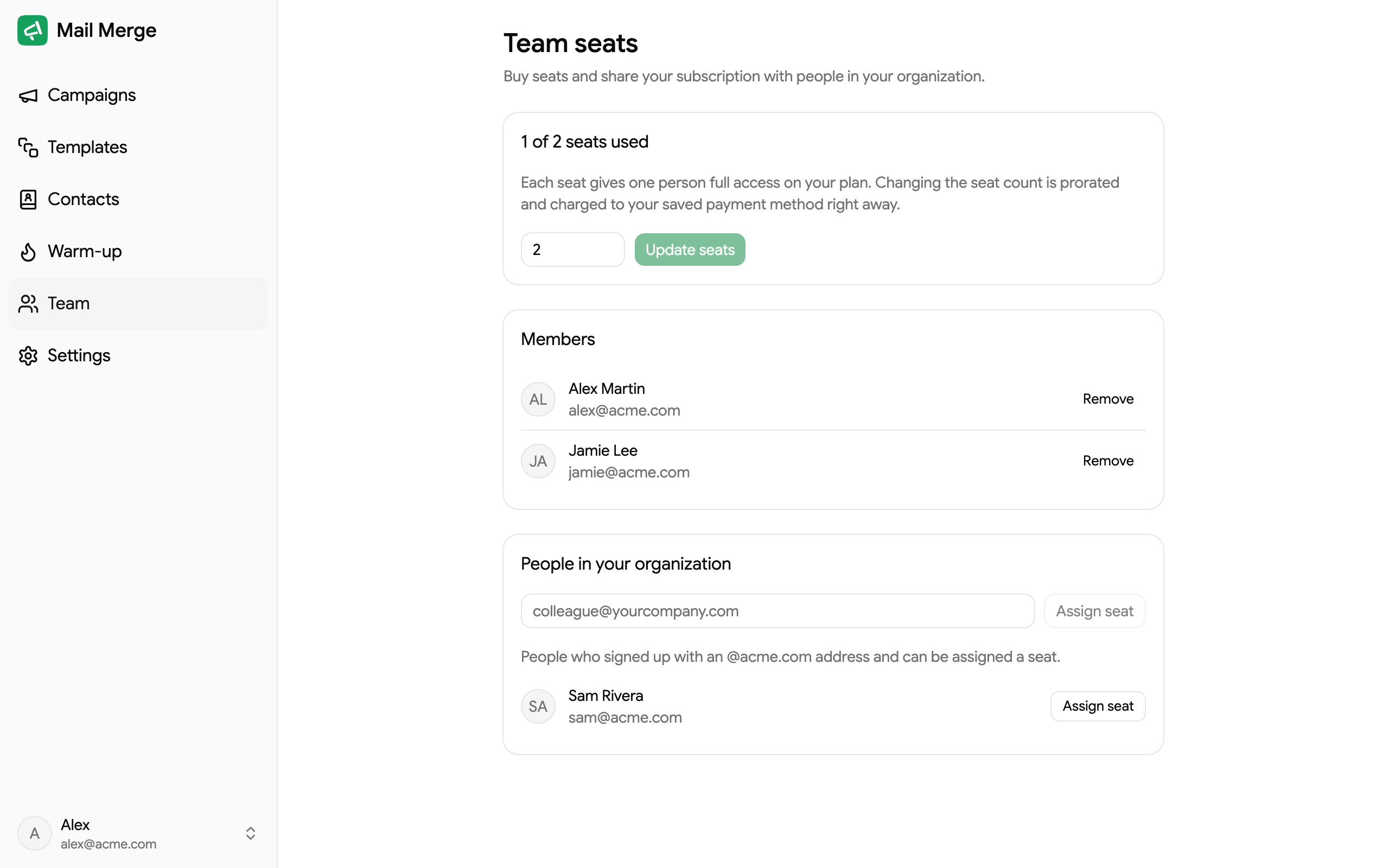
Section titled “Buying seats”The card at the top shows how many seats you have and how many are in use. Use − and + to choose how many team seats you want on top of your own, then click Update seats. Each seat gives one person full access on your plan.
Changing the seat count is prorated and charged to your saved payment method right away; the next invoice reflects the new number of seats. Lowering the count works the same way, but you cannot go below the number of seats currently assigned. See Shared subscription for the billing details.
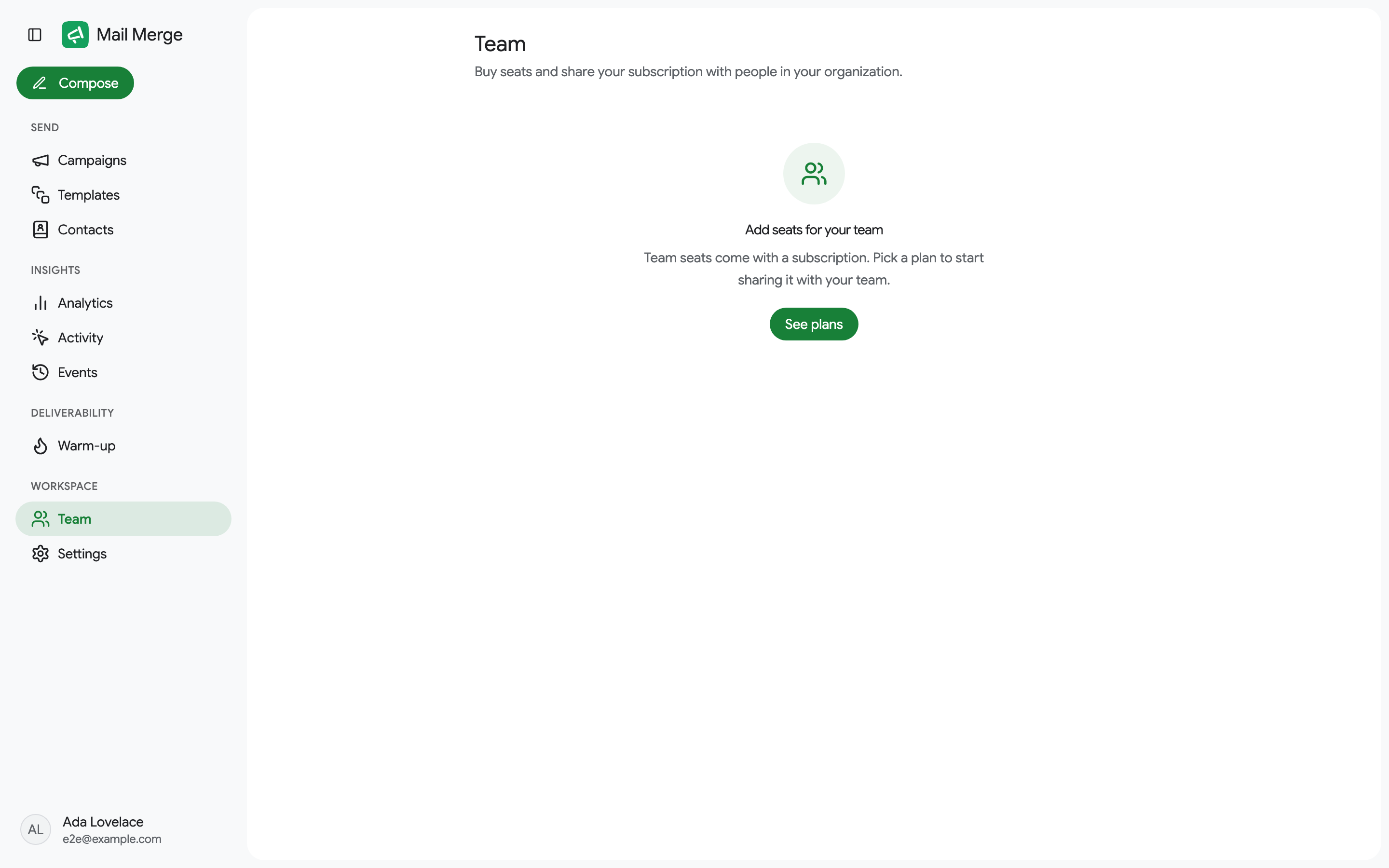
Seats need an active paid subscription. Without one, the screen offers See plans.
Who is on your plan
Section titled “Who is on your plan”The People on your plan card is the roster: everyone covered by the subscription, with their role (Owner for you, Member for a colleague holding a seat) and the day their seat was assigned. Seats assigned before this date was recorded show a dash.
Each member row has a ⋮ menu:
- Reassign seat moves the seat to a replacement in one step (an employee left, a new one joined). Type the new person’s email address and confirm: the leaver loses access right away, the newcomer gets it on their next sign-in, and no extra seat is bought. If anything goes wrong after the seat has been freed, it simply stays free and you can assign it from the list.
- Remove frees the seat for someone else.
Assigning seats
Section titled “Assigning seats”Below the roster, colleagues from your email domain who signed up to Mail Merge but have no seat yet are listed with an Assign seat button.
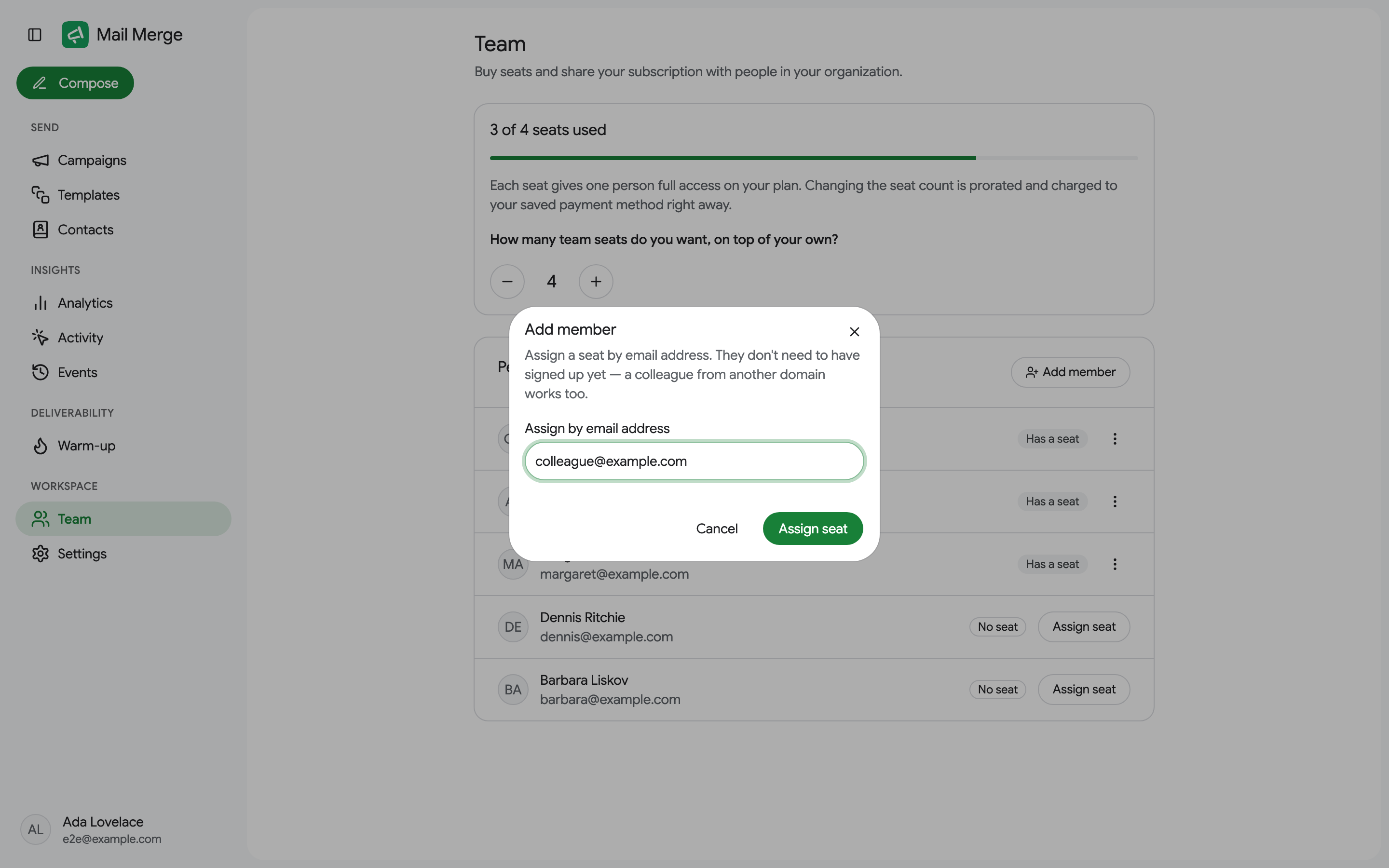
Add member assigns a seat by email address to anyone, including someone from another domain or someone who has not signed up yet. They get the seat as soon as they sign in with that address.
What a team member sees
Section titled “What a team member sees”A colleague holding a seat opens the same Team page and sees You have a seat on …‘s subscription: whose plan their access comes from and since when. Seats, billing and the roster are managed from the owner’s account, so a member who needs a change asks the owner. The card links to the shared templates.
Transferring the subscription
Section titled “Transferring the subscription”Transfer billing to another email moves the whole subscription, seats included, to another account: the person leaving the company hands it over, or the subscription sits on the wrong address. Members keep their seats and are re-pointed at the new owner.
Shared templates and team analytics
Section titled “Shared templates and team analytics”Everyone on the subscription sees each other’s templates in the Team tab of Templates, read-only, with one click to copy one into their own library. On the Professional plan, the owner can also switch Analytics to Team and see every member’s sends, opens and clicks in one report.
If the seat purchase fails at the card verification step (3-D Secure, common with Indian and some European cards), write to us: we send a Stripe invoice link to pay the seats directly.