
Follow-up sequences
A follow-up sequence sends reminders automatically. You attach up to three extra emails to a campaign; each one is sent a few days after the previous one, only to recipients who did not react to it. Someone who opens (or clicks) the first email never gets the reminder.
Adding follow-ups
Section titled “Adding follow-ups”In the campaign builder, click Add follow-up in the bottom bar. A step appears under the editor:
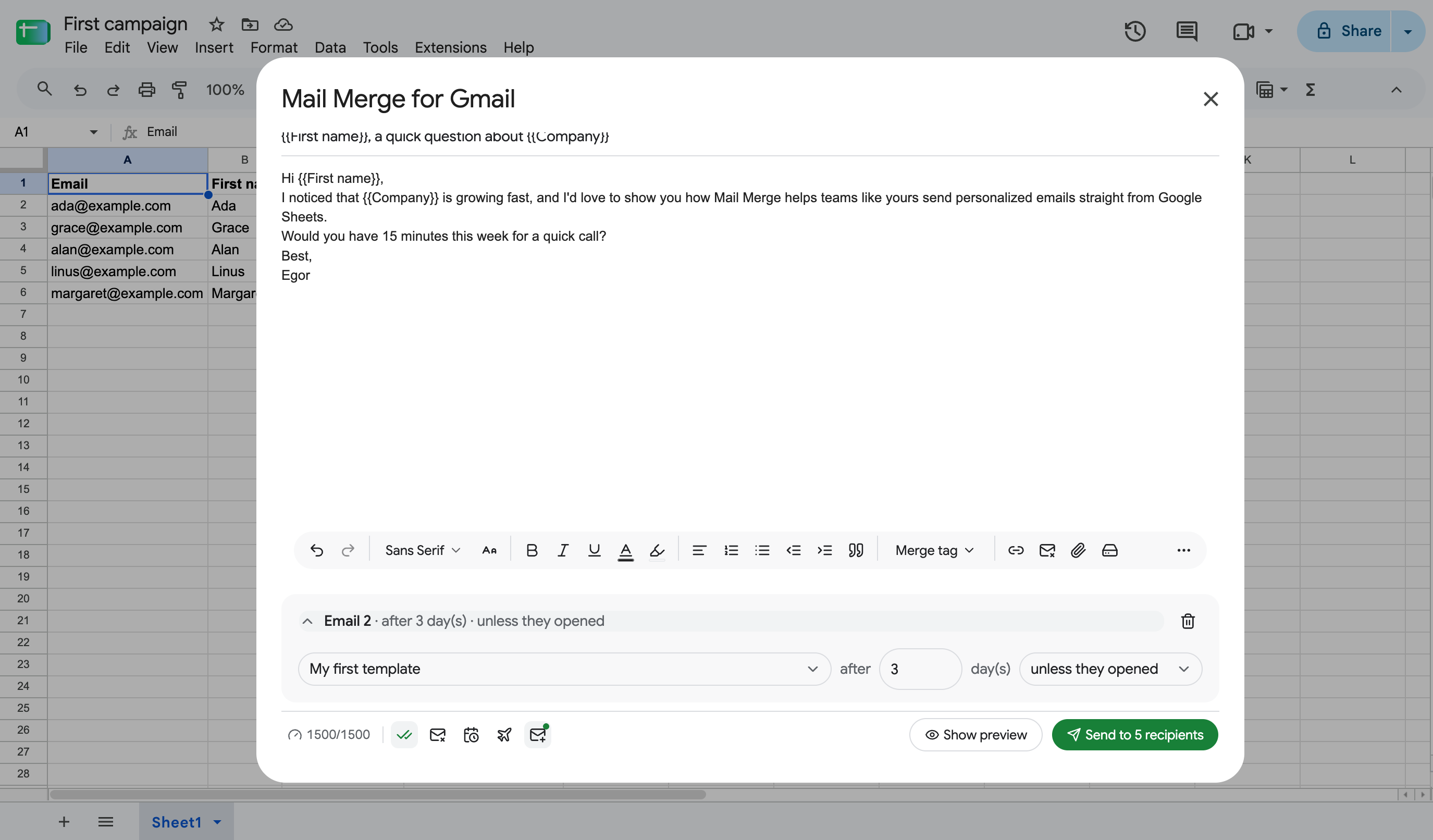
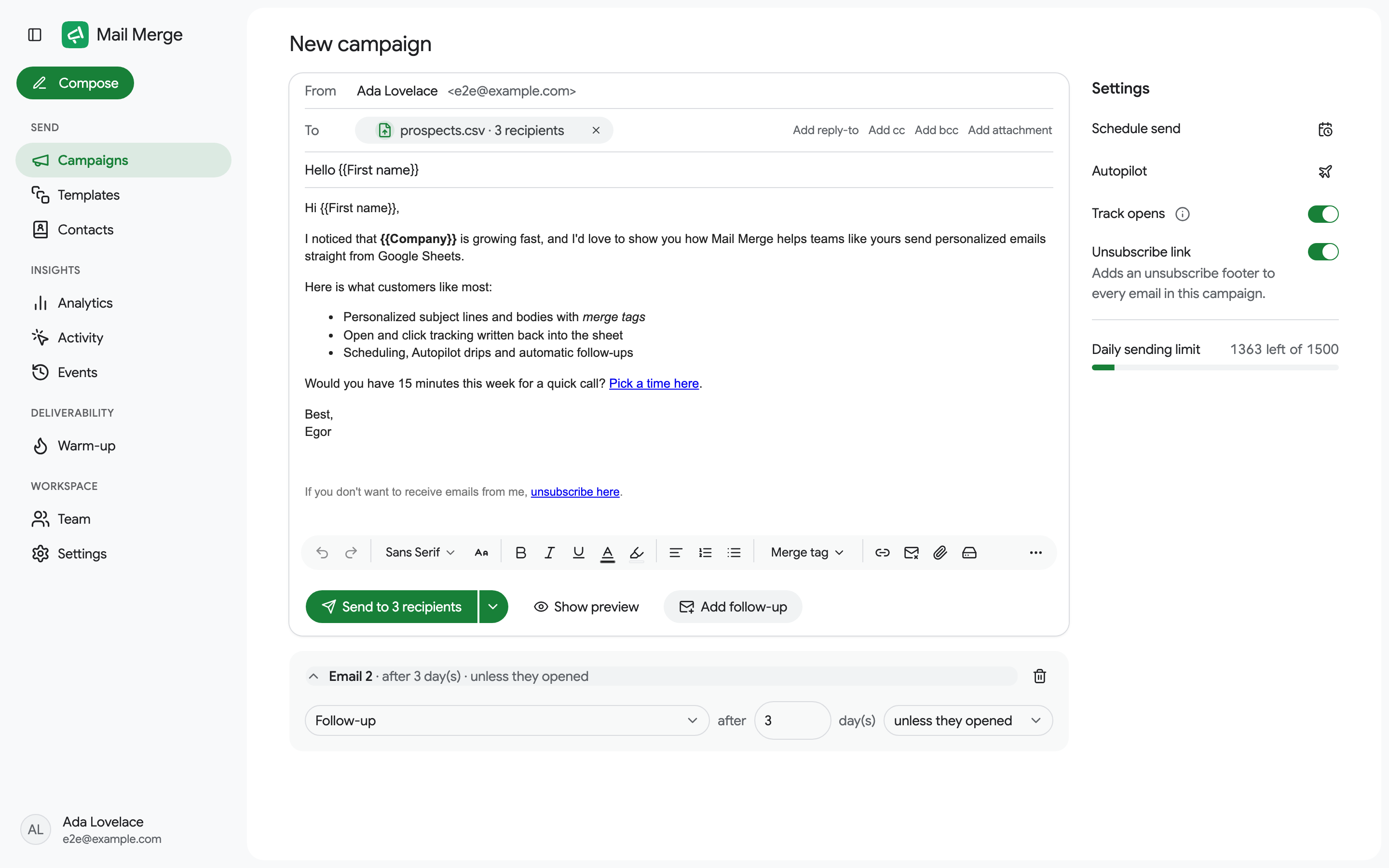
For each step choose:
- The template to send. Follow-ups always use a saved template; create one for each step first.
- The delay, 1 to 30 days after the previous email.
- The condition: unless they opened or unless they clicked the previous email.
Click Add follow-up again for a second and third step, and the trash icon to remove one. Adding a follow-up turns Track opens on, since the sequence needs tracking to know who reacted.
The send button stays disabled until every step has a template. The preview mentions how many follow-up emails will be scheduled.
How a sequence runs
Section titled “How a sequence runs”- The first email sends like any campaign: immediately or at the scheduled time.
- When a step’s delay elapses, Mail Merge builds the next campaign with only the recipients who did not open (or click) the previous email, and who did not reply, bounce or unsubscribe. The decision is made at send time, so a late open still excludes the recipient.
- Each step appears as its own campaign in Campaigns, with a Follow-up badge. Opening any of them shows the Sequence funnel: per email, how many were sent, opened, clicked, replied, bounced, skipped and unsubscribed.
- In your sheet, a recipient skipped by a follow-up is marked Skipped (with the reason in the cell note), Replied or Bounced.
Follow-ups respect the same rules as any campaign: unsubscribers and blocked contacts are never emailed, and each step counts against your daily sending limit on the day it sends.