
Campaign scheduling
A campaign does not have to leave right away. Schedule send starts it at a date and time you choose, and Autopilot spreads it over several days within a daily cap and a sending window. Both live in the campaign builder, in Google Sheets and in the web app alike.
Schedule send
Section titled “Schedule send”- Write the campaign as usual.
- Click the Schedule send calendar icon (in the bottom bar inside Google Sheets, in the Settings column in the web app).
- Pick a date and time, at least two hours from now, and click Apply. The time is in your own time zone, which the popover names.
- The send button now reads Schedule N emails. Click it and confirm.
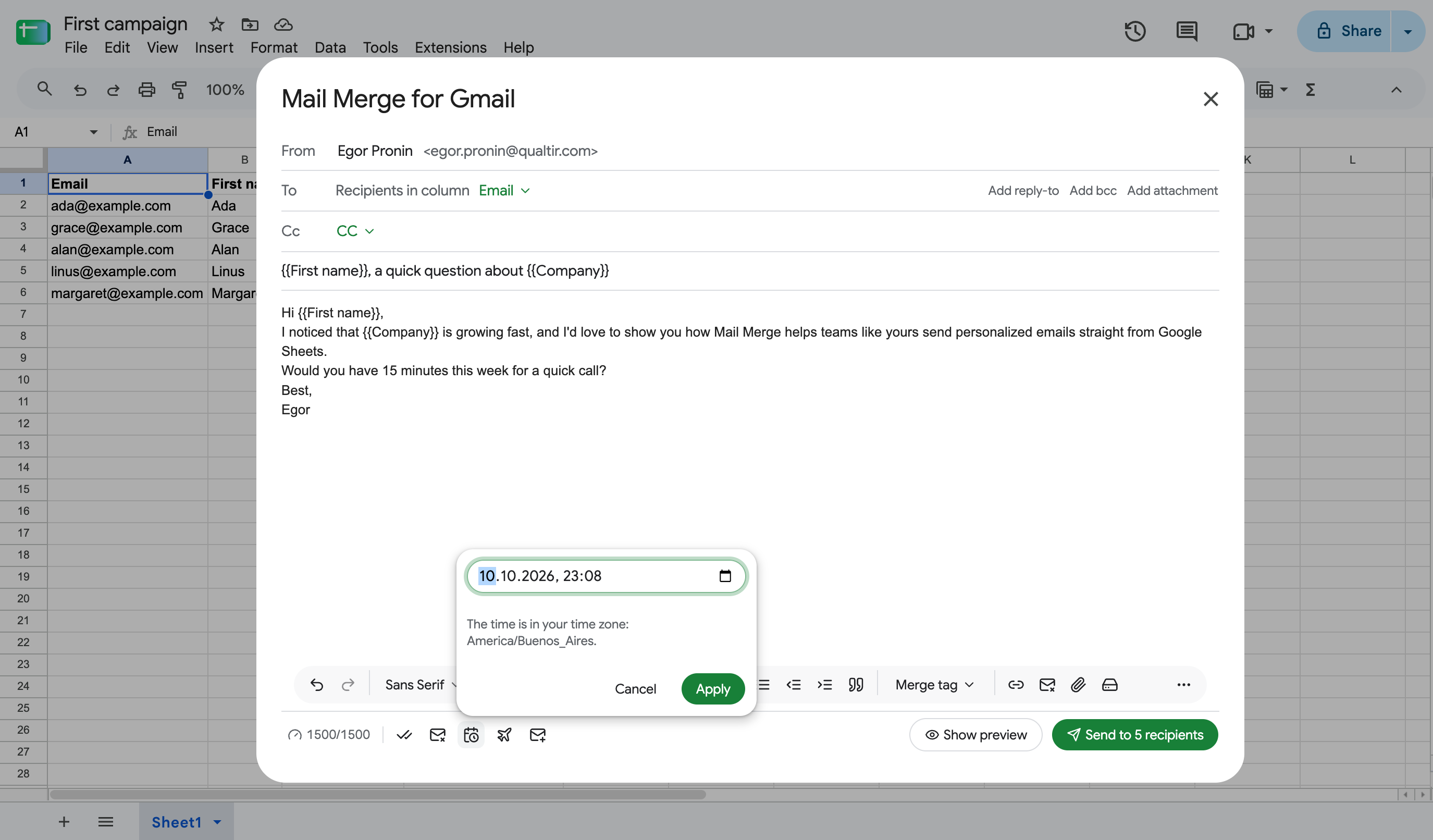
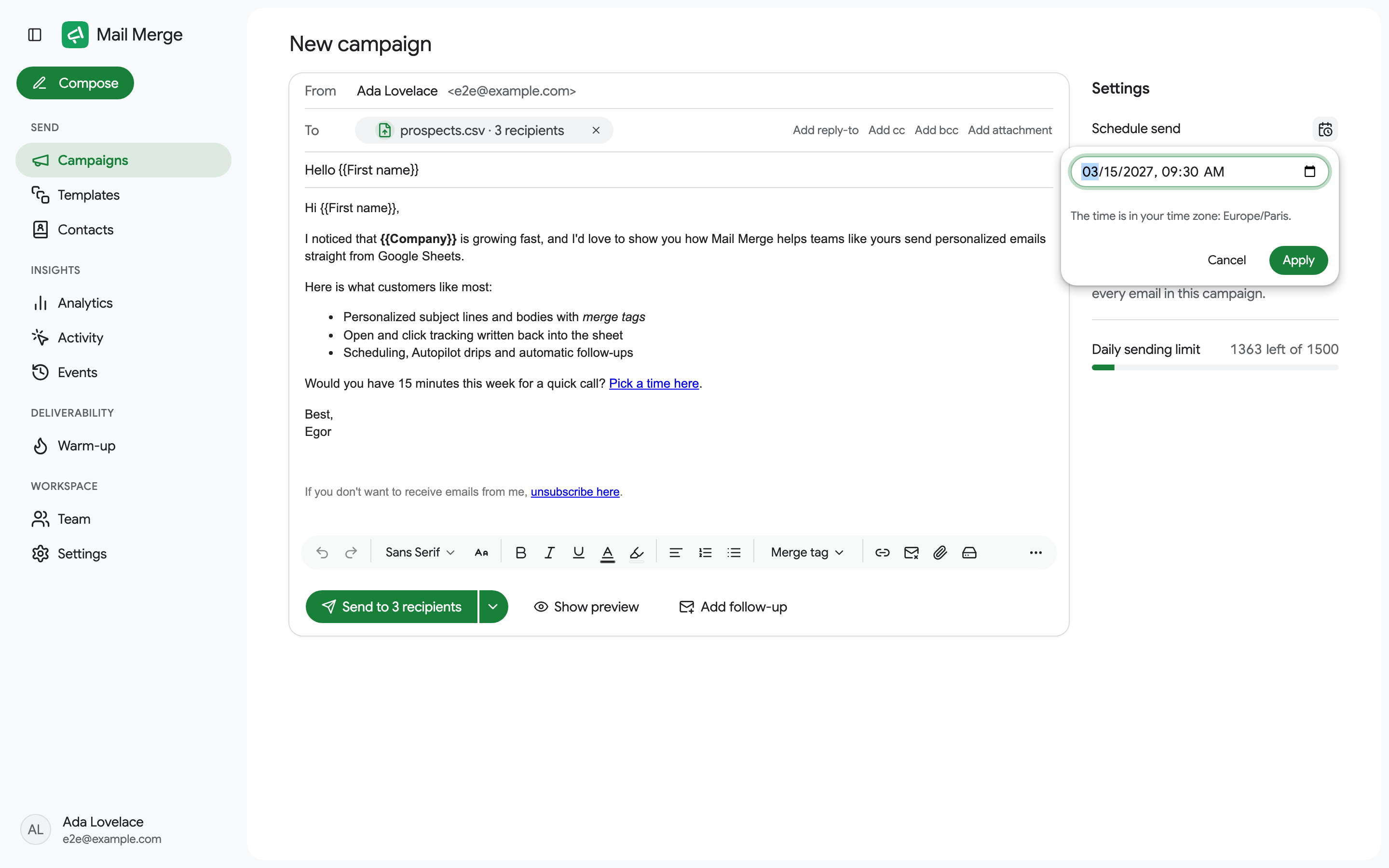
In the web app the same popover opens from the Settings column, and the chosen date shows as a badge next to Schedule send.
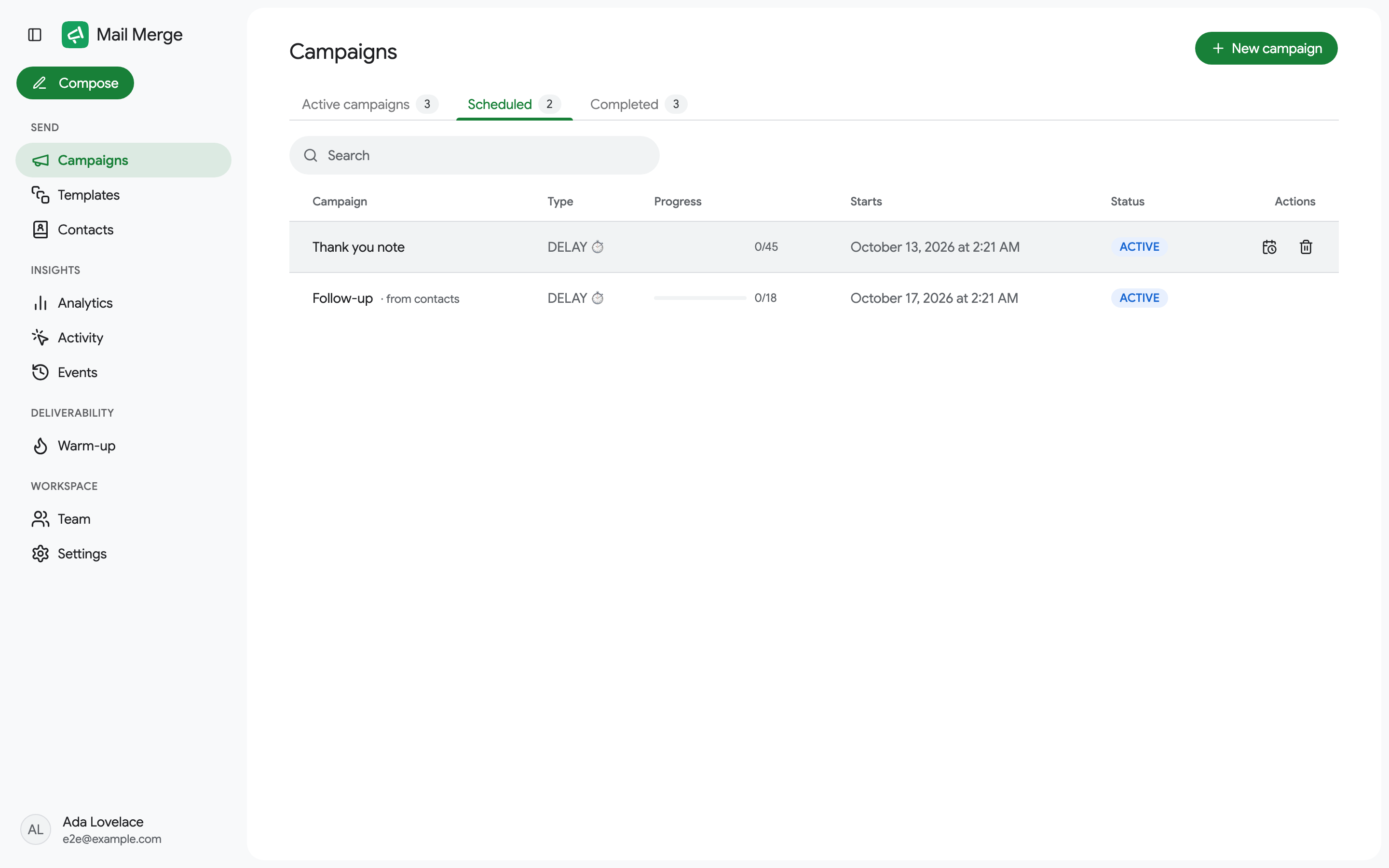
The campaign appears in the Scheduled tab of Campaigns, and the rows of your sheet are marked Scheduled until it starts. A scheduled campaign is checked against your daily sending limit on its day: if it no longer fits, it is postponed to the next day with enough room, and you are notified. The builder also refuses to schedule a campaign on a day whose limit is already booked by other scheduled campaigns; pick another day or use Autopilot.
Changing or cancelling a scheduled campaign
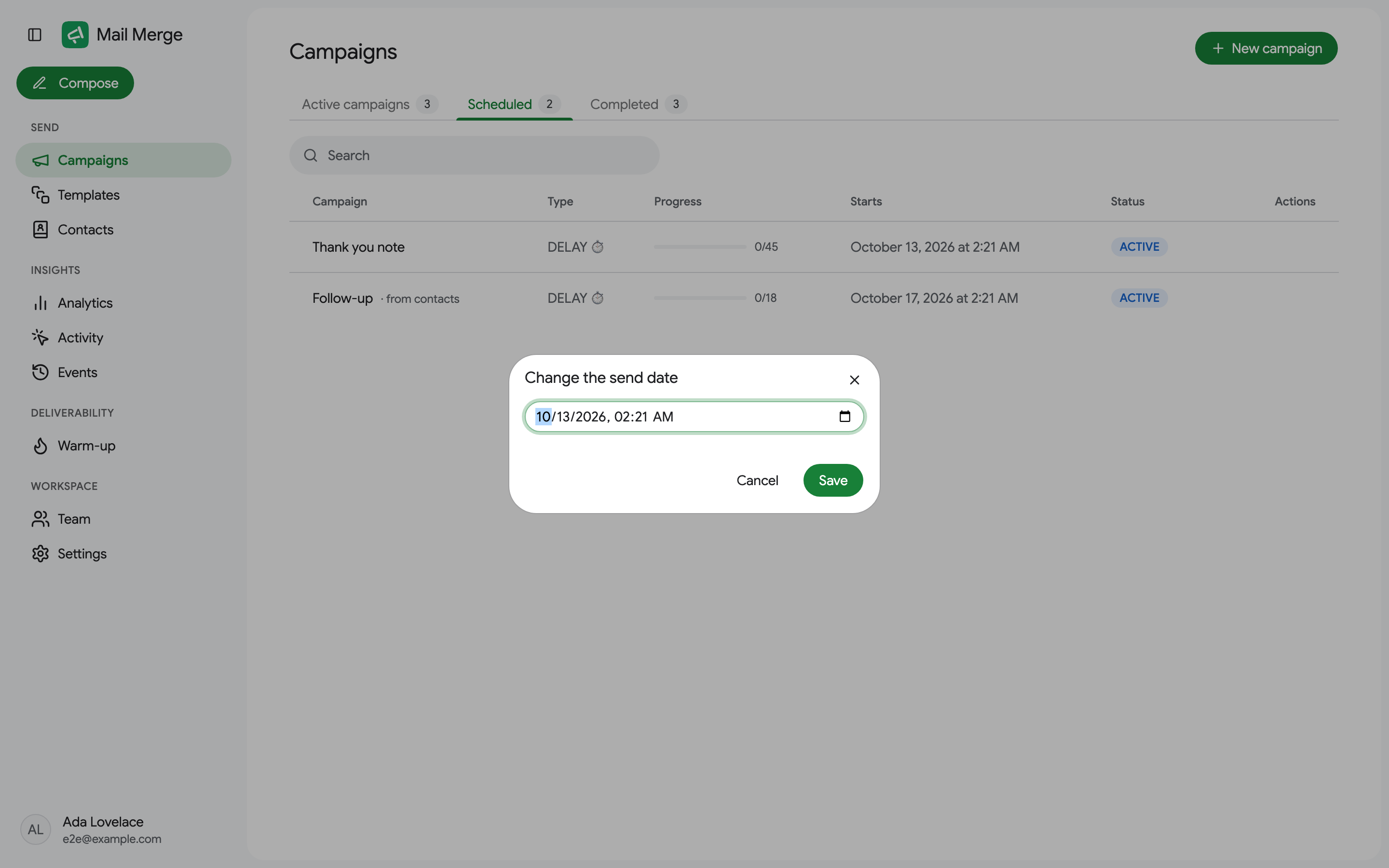
Section titled “Changing or cancelling a scheduled campaign”Open Campaigns → Scheduled and hover the campaign:
- Edit send date moves it to another date and time.
- Delete cancels it. Nothing is sent, and the campaign’s data is removed.
Autopilot
Section titled “Autopilot”Autopilot is for lists larger than what you want to send in one day. It sends a slice of the campaign every day, only on the weekdays and during the hours you allow, until everyone has been emailed.
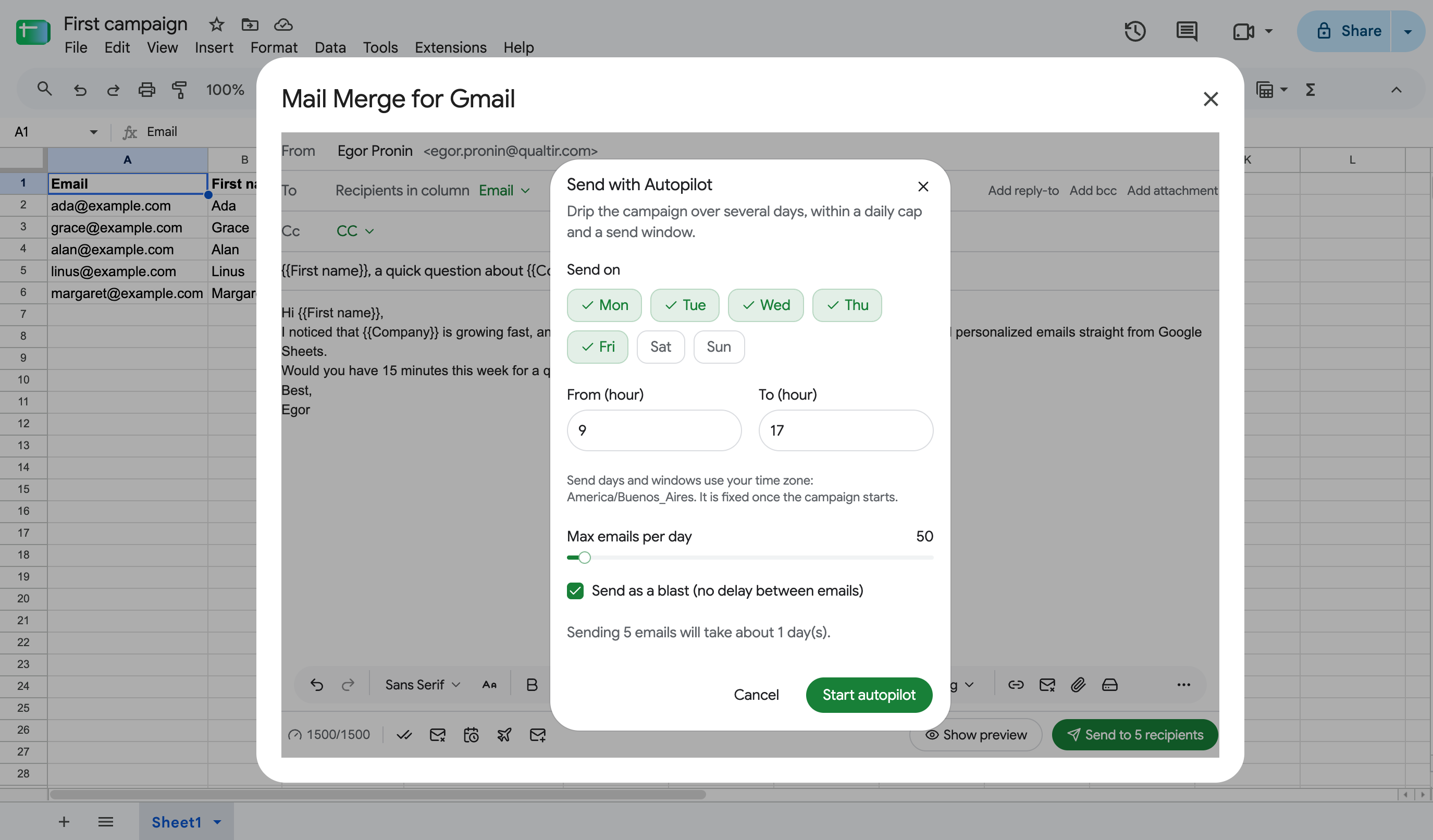
- Send on: the days of the week. Monday to Friday by default.
- From (hour) and To (hour): the sending window, 9:00 to 17:00 by default, in your time zone. The time zone is fixed once the campaign starts.
- Max emails per day: the daily cap. It cannot exceed your plan’s daily limit.
- Send as a blast: send the day’s slice as fast as Gmail allows. Untick it to set a number of minutes between emails instead.
- The dialog estimates how many days the campaign will take.
Click Start autopilot. The campaign shows as AUTOPILOT in the Campaigns list, and Edit autopilot in its row menu changes the days, hours, cap and delay while it runs.
Autopilot also lets a campaign exceed today’s limit: when the builder warns that a campaign is over your daily sending limit, Set up Autopilot is the way to send it anyway, spread over the following days.
Send on new form responses
Section titled “Send on new form responses”A form automation answers a Google Form for you: link the form to a spreadsheet, open the add-on on the tab that collects the responses (the one named Form Responses 1 by default), write the email with merge tags for the form’s questions, then pick Send when a new form response arrives… from the send menu and click Create automation. From then on, every new response gets the email within about a minute, personalized with its own answers, and the row’s 📮 status cell shows In queue, then Sent.
- The recipient is the column holding the respondent’s address. Turn on Collect email addresses in the form, or add an email question, so every response has one; a response without an address is marked Missing recipient.
- Responses that already exist when you create the automation are not emailed.
- The automation shows as AUTOMATION in the Campaigns list with the number of responses answered. Pause, resume or stop it from the row menu like any campaign. A response that arrives while it is paused is marked Paused in the sheet and is not sent later.
- The email is frozen when the automation is created. To change it, stop the automation and create a new one.
- Daily sending limits apply: a response that arrives after the limit is reached waits in the queue and goes out once the limit resets.
- You can also start from the form itself: in the Google Forms editor, open Extensions → Mail Merge for Gmail → Send an email for each response. The builder opens on the form’s responses tab, already in automation mode, and works before the first response arrives. If the form does not send its responses to a spreadsheet yet, Mail Merge offers to create and link one (the same as Responses → Link to Sheets).
- An automation created from the web app is activated the next time you open the add-on in that spreadsheet (Extensions → Mail Merge for Gmail → New campaign); until then it shows Waiting for activation. The add-on installs a trigger in the spreadsheet, which is what notices new responses, so the automation only runs for the account that created it.
- Do not type into the 📮 status column below the responses: Google Forms appends new rows under the last filled row.