
Use Mail Merge with AI agents (MCP)
Mail Merge has a public MCP server, so an AI agent you already use can read your Google Sheets, write templates, manage contacts and send campaigns through your Mail Merge account. You talk to the agent in plain language, the agent calls Mail Merge, and every email still goes out from your own Gmail account with the same quotas, tracking and status column as a campaign started by hand.
What it is
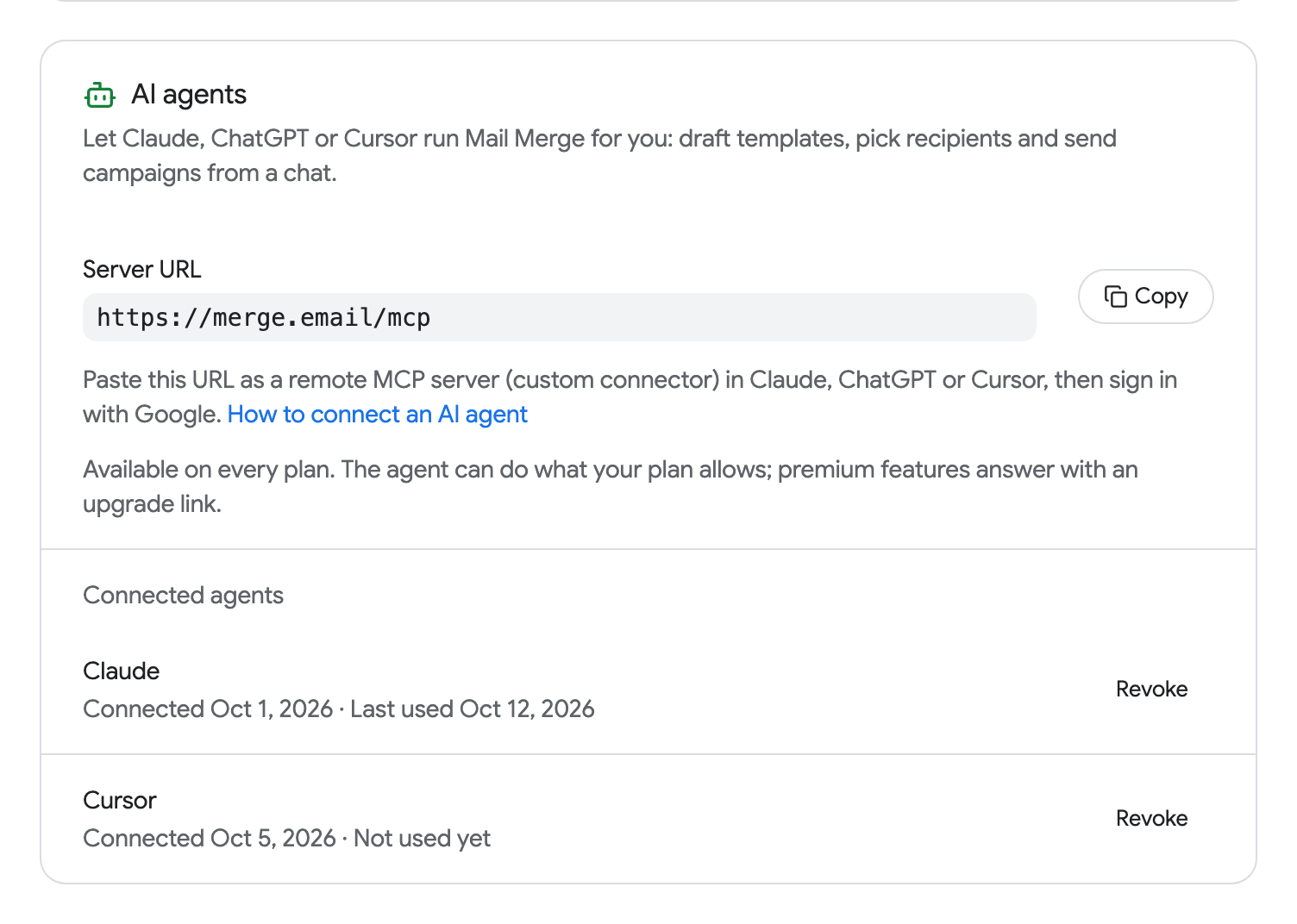
Section titled “What it is”The server exposes the same features as the web app, grouped as tools an agent can call: account and plan, Google Sheets, templates, contacts, campaigns, analytics, warm-up and settings. The agent only sees the account you sign in with, and only until you revoke it. Each connected agent gets its own access token, listed under Settings → AI agents in the web app.
The server URL
Section titled “The server URL”https://merge.email/mcpThe server uses the Streamable HTTP transport and OAuth 2.1. When your assistant connects for the first time, a browser window opens: sign in with the Google account you use with Mail Merge, read the consent page naming the agent, and approve.
Connect Claude
Section titled “Connect Claude”Claude (claude.ai)
- Open Settings → Connectors.
- Click Add custom connector.
- Paste
https://merge.email/mcpas the URL and click Connect. - Sign in with Google in the window that opens and approve the agent.
Claude Desktop uses the same path: Settings → Connectors → Add custom connector.
Claude Code
claude mcp add --transport http mailmerge https://merge.email/mcpThen type /mcp in a session, pick mailmerge and follow the sign-in link.
Connect ChatGPT
Section titled “Connect ChatGPT”- Open Settings → Connectors.
- Choose Create (in some versions it sits under Advanced → Developer mode).
- Enter a name, paste
https://merge.email/mcpas the server URL, pick OAuth and save. - Sign in with Google when prompted and approve the agent.
Connect Cursor
Section titled “Connect Cursor”Add the server to .cursor/mcp.json in your project (or to the global file from Cursor Settings → MCP):
{ "mcpServers": { "mailmerge": { "url": "https://merge.email/mcp" } }}The MCP list then shows mailmerge with a Needs login link. Click it, sign in with Google and approve the agent.
Other clients
Section titled “Other clients”Any MCP client that supports remote servers over Streamable HTTP with OAuth works the same way: point it at https://merge.email/mcp. Clients that look up the server’s metadata find it at:
https://merge.email/.well-known/oauth-protected-resource/mcpDynamic client registration and PKCE are supported, so no client ID or secret has to be configured in advance.
What the agent can do
Section titled “What the agent can do”Account
| Tool | What it does |
|---|---|
get_account | Your plan, today’s quota and the features your plan includes. |
get_pricing | The current plans and prices. |
get_subscription | Your subscription status, billing period and renewal date. |
get_billing_portal_link | A link to the billing portal (invoices, payment method, plan changes). |
get_team_seats | The seats of your team subscription and who holds them. |
assign_team_seat | Gives a seat to a colleague. |
unassign_team_seat | Takes a seat back. |
Google Sheets
| Tool | What it does |
|---|---|
list_spreadsheets | The spreadsheets in your Google Drive. |
list_sheets | The tabs of a spreadsheet. |
read_sheet | The headers and rows of a sheet, the data a campaign merges. |
Templates
| Tool | What it does |
|---|---|
list_templates | Your saved templates. |
get_template | A template’s subject and body. |
create_template | Saves a new template. |
update_template | Changes a template’s name, subject or body. |
delete_template | Deletes a template. |
duplicate_template | Copies a template. |
generate_template | Writes a template with AI from a brief, optionally matching the columns of a sample sheet. |
import_google_doc | Turns a Google Doc into a template. |
Contacts
| Tool | What it does |
|---|---|
list_contacts | Your contacts, with filters for unsubscribers and the blocklist. |
add_contact | Adds one contact. |
import_contacts | Adds many contacts at once. |
delete_contacts | Removes contacts. |
block_contacts | Puts addresses on the blocklist so no campaign emails them. |
unblock_contacts | Removes addresses from the blocklist. |
list_contact_lists | Your contact lists. |
create_contact_list | Creates a list. |
rename_contact_list | Renames a list. |
delete_contact_list | Deletes a list (the contacts stay). |
add_contacts_to_list | Adds contacts to a list. |
remove_contacts_from_list | Removes contacts from a list. |
Campaigns
| Tool | What it does |
|---|---|
list_campaigns | Your active, scheduled and completed campaigns. |
get_campaign | One campaign with its progress and settings. |
get_campaign_recipients | The per-recipient statuses of a campaign. |
get_sequence_stats | How a follow-up sequence is performing. |
check_quota | How many emails you can still send today and whether a campaign fits. |
send_test_email | Sends a rendered test to your own address. |
send_campaign | Starts a campaign from a sheet, a contact list or a typed list of recipients: now, scheduled, or as Autopilot, with an optional follow-up. Supports a dry run that reports what would be sent without sending. |
pause_campaign | Pauses a running campaign. |
resume_campaign | Resumes a paused one. |
stop_campaign | Stops a campaign for good. |
reschedule_campaign | Changes the send date of a scheduled campaign. |
update_autopilot | Changes the daily volume and window of an Autopilot campaign. |
delete_scheduled_campaign | Deletes a scheduled campaign before it starts. |
Analytics
| Tool | What it does |
|---|---|
get_analytics | Sends, opens and clicks over time, with rates and top links. |
get_activity | Who opened, clicked and unsubscribed, recipient by recipient. |
get_account_events | The history of everything that happened on your account. |
Warm-up
| Tool | What it does |
|---|---|
get_warmup | The status and reputation trend of your warm-up. |
enable_warmup | Starts warming up your mailbox. |
pause_warmup | Pauses warm-up. |
resume_warmup | Resumes it. |
stop_warmup | Stops it. |
update_warmup_settings | Changes the daily volume and ramp-up. |
check_email_reputation | Runs the free reputation check on an address or domain. |
Settings
| Tool | What it does |
|---|---|
set_throttle | Sets the sending speed: as fast as possible, a fixed delay, or a random delay between emails. |
Example requests
Section titled “Example requests”Once connected, ask the agent the way you would ask a colleague:
- “Read the Leads tab of my Q4 outreach spreadsheet, write a short follow-up email that uses the first name and company columns, and send me a test.”
- “How many emails can I still send today? If the Webinar invite template fits, schedule it to the Webinar contact list for tomorrow at 9am.”
- “Which campaign from last month had the best open rate, and who clicked the pricing link?”
- “Pause the Partners campaign and block everyone who replied asking to be removed.”
Plans and limits
Section titled “Plans and limits”An agent has exactly the permissions of your plan. Nothing is unlocked by connecting one.
| Free | Personal | Professional | |
|---|---|---|---|
| Emails per day | 50 | 250 | 500 with a Gmail address, 1,500 with Google Workspace |
| Scheduling, delays, campaign history | Yes | Yes | |
| Analytics and activity | Yes | Yes | |
| Autopilot and follow-up sequences | Yes | ||
| Email warm-up | Yes |
When an agent calls a tool your plan does not include, the call does not fail silently: the tool answers with a message explaining which plan is needed and a link to upgrade, which the agent shows you. Daily quota works the same way: check_quota tells the agent what fits today, and a campaign that does not fit is postponed or refused exactly as it would be in the web app. See Pricing & subscription and Daily sending limits.
Staying in control
Section titled “Staying in control”- The agent confirms before sending. Before
send_campaignthe agent is instructed to show you the recipient count, the template and the send time, and to wait for your go-ahead. Read that summary as carefully as you would the send button. - Dry run first. Ask for a dry run and the agent reports what would be sent (recipients, subject, merge fields) without sending anything.
- Quota check.
check_quotatells you how much of today’s quota a campaign would use, so a large list does not surprise you. - The status column is still there. A campaign started from a Google Sheet by an agent fills the same 📮 status column as one started from the add-on, so you can follow it row by row in the spreadsheet and in Campaigns.
- Pause or stop at any time, from the agent, from the web app or from the add-on.
Revoke an agent
Section titled “Revoke an agent”Open merge.email/app → Settings → AI agents. The card lists every connected agent with the date it connected and when it was last used. Click Revoke next to an agent to cut its access immediately; the next call it makes is refused and it has to go through the sign-in again.
Revoking an agent does not touch your Google connection or your other agents. To remove Mail Merge’s own access to your Google account as well, go to myaccount.google.com/connections, which signs every agent out at once and also stops any running campaign (see Reconnecting your Google account).
Security
Section titled “Security”- OAuth 2.1 with PKCE. The agent never sees your Google password, and you never type a password into the agent. You sign in on Google’s own page and approve on a Mail Merge consent page that names the agent.
- A token per agent. Each connection gets its own token with its own expiry and refresh, so revoking one agent leaves the others working.
- Revocation is immediate, from Settings → AI agents or from your Google account.
- The same data rules as the app. An agent reads and writes exactly what the web app can, nothing more, and Mail Merge stores nothing new on its behalf. See Permissions and data.